 Traditional grading Traditional gradingIn a traditional project environment, you may have had to grade projects on the spot during the presentation, or lugged a pile of hard copy projects home to grade.
Grading resourcesFirstClass has tools that simplify grading. Because students are submitting their projects online, you can also access them online from anywhere, eliminating the need to drag work home. The FirstClass editor lets you use color and font to grade the projects right inside the document.
This is an editing sample.
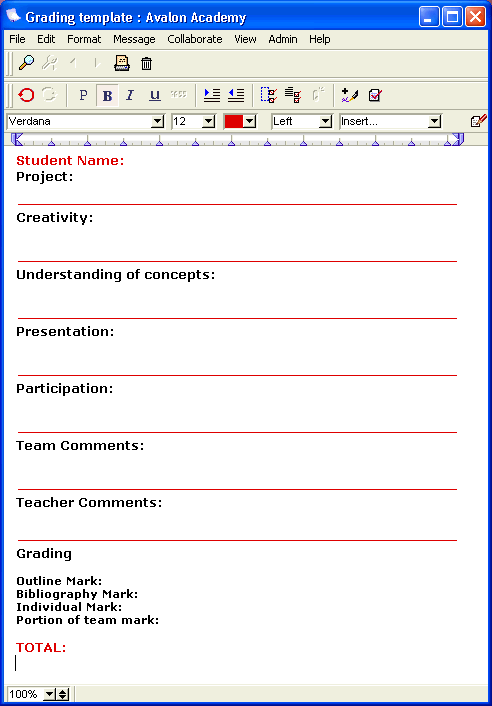
 Another way to grade is to create a Rubric chart. The power of FirstClass tables lets you put a Rubric together for each project you have. You can make the chart available to students at the start of the projects so they know what is required for a good mark, and you can use the Rubric as a guide when you do the final grading. Furthermore, you can create a grading template online that you give back to students. It can contain a list of criteria you are using to grade the projects. You can complete it and email it to each student's Mailbox. You can provide fields for originality, creativity, and don't forget room for comments.
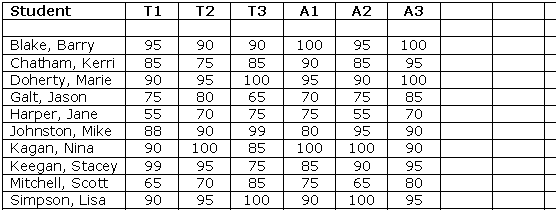
 FirstClass is a gradebook FirstClass is a gradebookAs you grade the projects, you can track the grades in an online gradebook. FirstClass tables lets you create and customize a table to track student marks for various projects and assignments.
 The next step The next stepNow that you've completed the stages of project development, you are ready to start your own projects. You may want to consider additional factors, such as project guidelines, sharing information between teachers, home schooling, or special education. Visit our Considerations section to look at some of the topics you can read about.
If you are looking for project ideas, visit the project gallery.
| ||
