[ fcp://@fc.onlinehelp.com,%237600229/En/OnlineHelp/Web%20Help/LW2 ]Contents [ fcp://@fc.onlinehelp.com,%237600229/En/OnlineHelp/Web%20Help/LW31 ][Image:81203_43854_21.png][ fcp://@fc.onlinehelp.com,%237600229/En/OnlineHelp/Web%20Help/LW42 ][Image:81203_43840_19.png] [Marker][ fcp://@fc.onlinehelp.com,%237600229/En/OnlineHelp/Web%20Help/LW32#The reading pane ]The reading pane [ fcp://@fc.onlinehelp.com,%237600229/En/OnlineHelp/Web%20Help/LW32#Opening the reading pane ]Opening the reading pane --------------- [Marker]The reading pane When the reading [ fcp://@fc.onlinehelp.com,%237600229/En/OnlineHelp/Definitions/L2018 ]pane is open, it is displayed under or to the right of the main pane. The reading pane displays the contents of any object selected in the main pane. For example, a selected message or document opens in this pane. You can work with objects in the reading pane just as you do when they are opened in the main pane. [ fcp://@fc.onlinehelp.com,%237600229/En/OnlineHelp/Web%20Help/LW32#Top ]Top --------------- [Marker]Opening the reading pane To open the reading pane, click this button: [Image:892006_13851_0.png] This button is only visible if you have the navigation pane open. It [ fcp://@fc.onlinehelp.com,%237600229/En/OnlineHelp/Definitions/L2035 ]toggles through three states. To move the reading pane to the right of the main pane, click this button again. To close the reading pane, click this button a third time. [ fcp://@fc.onlinehelp.com,%237600229/En/OnlineHelp/Web%20Help/LW32#Top ]Top
   
F1016
 
 
Home  •  Help  •  M0  •  Practical Uses for FirstClass  •  Developing Projects - Education  •  Project Stages  •  F1016
72203_112759_0.pngManaging tasks
Stages
 Traditional task management
Traditionally, students would manage tasks by dividing the required tasks amongst themselves during meetings. Then they would track their own tasks and report back to other members at later meetings.
FirstClass helps you and your students manage your tasks from one location. You can use your personal calendar to manage your own tasks, or use a group calendar to centralize the task management.  
9203_31808_2.png FirstClass is a task manager
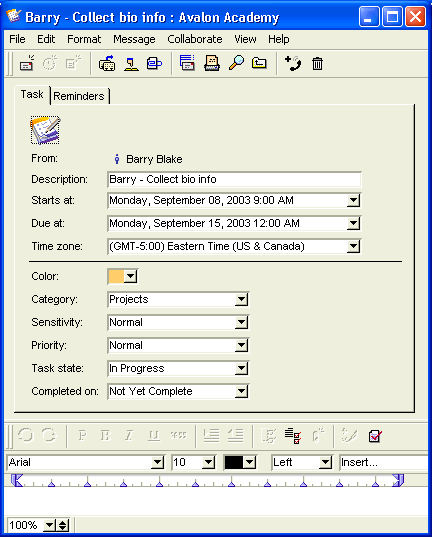
A FirstClass calendar is an excellent way to manage the tasks of a project. You can list the tasks required for a project and assign them to the respective team members. All of the information is kept in one location and can be accessed at any time. For each task, you can track the details, such as the date the task was started, when it is due, the priority level, the state of the task, and when it was completed. You can also schedule reminders for tasks and attach pertinent documentation.
This shows the details you can manage for each task.  
81203_110705_0.png
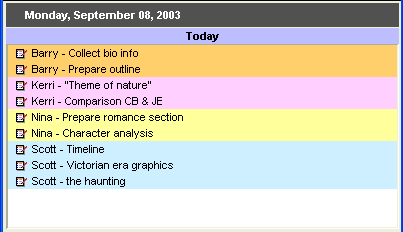
Like calendar events, you can use color to differentiate tasks, or assign a color to each person to differentiate between the tasks of team members.
31504_23505_0.png
Each team member has access to the same calendar. There's no need to make sure everyone is on the same track, because it is all laid out for each member to access at their own convenience. Furthermore, each member can
customize their own view to provide information to them in the way that works best for them.
9203_31808_2.png The next step
Once each student knows what they are responsible for, they can start collecting their information.