[ fcp://@fc.onlinehelp.com,%237600229/En/OnlineHelp/Web%20Help/LW2 ]Contents [ fcp://@fc.onlinehelp.com,%237600229/En/OnlineHelp/Web%20Help/LW31 ][Image:81203_43854_21.png][ fcp://@fc.onlinehelp.com,%237600229/En/OnlineHelp/Web%20Help/LW42 ][Image:81203_43840_19.png] [Marker][ fcp://@fc.onlinehelp.com,%237600229/En/OnlineHelp/Web%20Help/LW32#The reading pane ]The reading pane [ fcp://@fc.onlinehelp.com,%237600229/En/OnlineHelp/Web%20Help/LW32#Opening the reading pane ]Opening the reading pane --------------- [Marker]The reading pane When the reading [ fcp://@fc.onlinehelp.com,%237600229/En/OnlineHelp/Definitions/L2018 ]pane is open, it is displayed under or to the right of the main pane. The reading pane displays the contents of any object selected in the main pane. For example, a selected message or document opens in this pane. You can work with objects in the reading pane just as you do when they are opened in the main pane. [ fcp://@fc.onlinehelp.com,%237600229/En/OnlineHelp/Web%20Help/LW32#Top ]Top --------------- [Marker]Opening the reading pane To open the reading pane, click this button: [Image:892006_13851_0.png] This button is only visible if you have the navigation pane open. It [ fcp://@fc.onlinehelp.com,%237600229/En/OnlineHelp/Definitions/L2035 ]toggles through three states. To move the reading pane to the right of the main pane, click this button again. To close the reading pane, click this button a third time. [ fcp://@fc.onlinehelp.com,%237600229/En/OnlineHelp/Web%20Help/LW32#Top ]Top
   
F3208
 
 
Home  •  Help  •  W0  •  Using FirstClass ED  •  FirstClass ED for Teachers  •  The Teacher's Classroom  •  F3208
41204_42505_0.pngSharing news
Task list
 Traditional communication
It seems like every day there are pages of notes to send home with students. Pizza orders, milk orders, school clubs, field trip information, weekly or monthly calendars, early release day, theme day, March Break camps, and so on...it doesn't end. The information may come from the school level or the the teacher level, but you are always responsible for making sure students receive the forms and return them.
9203_31904_3.pngFirstClass ED is a secretary
Eliminate the time and resource costs of printing, photocopying, distributing, and collecting these forms on a daily basis.
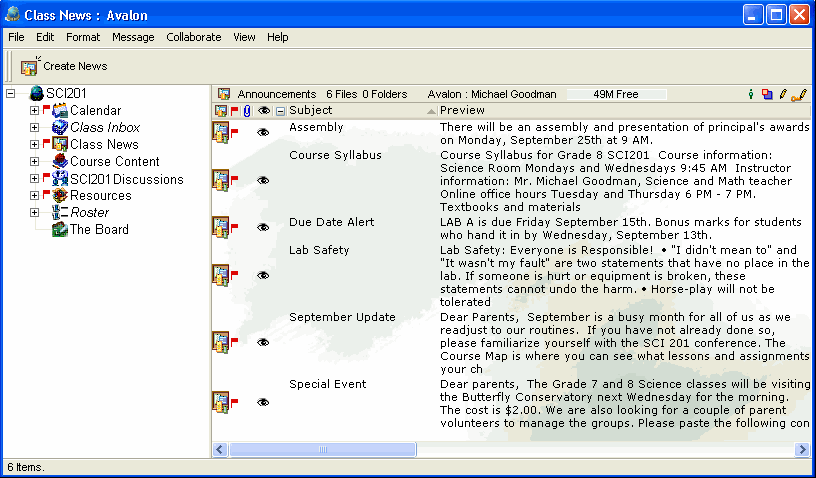
FirstClass ED has a Class News area where you can simply post this type of information in a message. Parents can log into their child's account regularly and see what is coming up.
This is an example of a Class News area with various types of information for parents and students.
1252005_25109_0.png
Creating a news item
To create a news item:
1 Click Create News.
2 Choose the type of news you wish to create.
3 Fill in the fields on the News form if necessary and add the information to the document.
4 Click OK.
81203_42521_14.png
Note
If you wish to maintain drafts of news items, set them to unpublished until you are ready to share them.
Publishing/hiding a news item
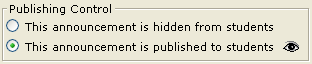
To publish/hide a news item, open the news item and choose the corresponding radio button in the envelope field.
7192005_43618_0.png
81203_42935_18.pngShortcut
Click the Published field (7192005_14220_4.png) directly on the pane for the corresponding news item.