Managing your portfolio Managing your portfolioTask list  Your portfolio Your portfolio Your portfolio is a collection of your work that represents your performance. Portfolios can include
• photographs or videos of science experiments, performances, or exhibits
• online presentations
• accomplishments and favorite work
• self-critiques and peer reviews of your work.
You can also use your portfolio to
• contain a work in progress that illustrates the creation of a product, such as an essay, as it evolves through various stages of conception, drafting, and revision
• log progress on readings and other recurrent projects
• involve parents in your education.
Collect, select, and reflectTraditionally, you write, hand in, and forget about the assignment. Portfolios provide an easy way to save that work and are an effective way to let you take a second look and think about how you can improve future work.
When deciding what to include in your portfolio consider:
• What would I like to reread or share with my parents or a friend?
• What makes this a good product?
• Will the content include one subject, or span several subject areas?
As you build a portfolio of selected pieces, you generate criteria for good work. If you are a primary student, you may simply follow guidelines set out by teachers. As a secondary student, you may brainstorm with the teacher and peers and, together set the guidelines to determine what type of work should be included.
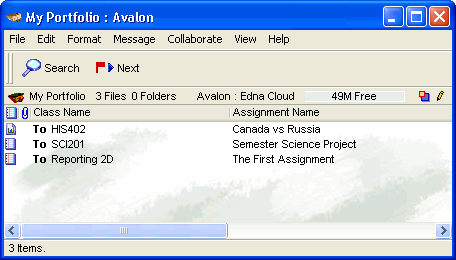
This is an example of a portfolio that spans a couple of subjects.
How toOnce you have decided which assignments to include in your portfolio, add them to the portfolio by dragging them from your Mailbox.
Parents can view your portfolio by logging into your account.
To share your portfolio, either move your My Portfolio folder into your My Shared Documents area, or create an alias in My Shared Documents to your portfolio.
To create an alias to your portfolio:
1 Select My Portfolio.
2 Right-click and choose Add to Desktop.
3 Drag the new My Portfolio into My Shared Documents.
 Note NoteIf you do not have a My Shared Documents folder on your Desktop, choose File > Open > My Shared Documents. The folder will be automatically added to your Desktop.
| ||