[Image:81903_22607_2.png]Book resources for a presentation Minimum version: FirstClass 8.3 Audience: Business professionals Experience: [Image:9203_22631_1.png] FirstClass applications used: [Image:9203_24337_3.png][ fcp://@fc.onlinehelp.com,%237600229/En/OnlineHelp/Client Help/Calendars ]Calendars [Image:9203_31709_1.png] Summary Looking for a simple way to organize the location and resources you need for your presentation? Consider using a FirstClass calendar. Instead of sending out printed memos and filling out request forms, you can use a group calendar in FirstClass to invite participants, reserve multimedia resources, and book locations. Here is a comparison of the conventional way you may book resources and how you would do it in FirstClass. [Image:92203_31828_0.png] [Image:9203_31709_1.png] Example Michael Green is vice president of Sales and Marketing at Husky Planes. Several times a year he showcases the company's newest products for his sales staff. His presentations usually consist of a promotional videotape from the Marketing department accompanied by a slide presentation. Michael schedules the presentation, invites members of the sales department, and books the boardroom and multimedia resources all at the same time. He doesn't have to leave his office to ensure that his presentation goes off without a hitch. Here are the steps he takes to handle the arrangements: STEP 1: Schedule presentation Michael schedules the presentation in the Sales Dept Calendar by creating a new event entitled New Product Promo. This is the new event he created. [Image:8102006_91145_0.png] STEP 2: Reserve venue Each resource or location Michael wishes to book has its own calendar. When he schedules an event, he simply enters the name of the resource calendar or location calendar on the Scheduling tab of the event he is booking. If there is a time conflict, it will show immediately and he can decide how to handle it. Michael reserves the company's mid-sized boardroom using the Scheduling tab. STEP 3: Reserve resources Michael also reserves a large screen television, a video cassette recorder, and a video projector. This is the Scheduling tab where he books the resources. [Image:882006_33623_2.png] When he entered his requests on the Resources tab for the New Products Promo event, a new event appeared in each item's calendar. Husky Planes' IT department monitors the resource and location calendars and ensures that requested equipment is ready for use when scheduled. This is the calendar for the video projector that John booked. [Image:882006_32721_0.png] STEP 4: Invite participants Michael invites the members of the sales department by entering their names on the Scheduling tab. From this screen, he sees who may have a time conflict. He adjusts the date and time as needed (the booked times for the resources and locations will also change automatically). The presentation will then appear in each of their personal calendars. This is the Scheduling tab where he invites participants. [Image:882006_33910_4.png] [Image:9203_31709_1.png] Variation If Michael has content he wishes to share before the presentation, he can attach it to the calendar event at the time of scheduling or type it in the text box on the event form. This is the event he created. He attached a file for review and included an agenda in the text area. [Image:882006_32224_4.png]
   
F4301
 
 
Home  •  Help  •  Practical Uses for FirstClass  •  Project Management - Business  •  Project Resources  •  Sample Projects  •  F4301
72203_112759_0.png Sample Projects: Roy Summerville's Can-Do project
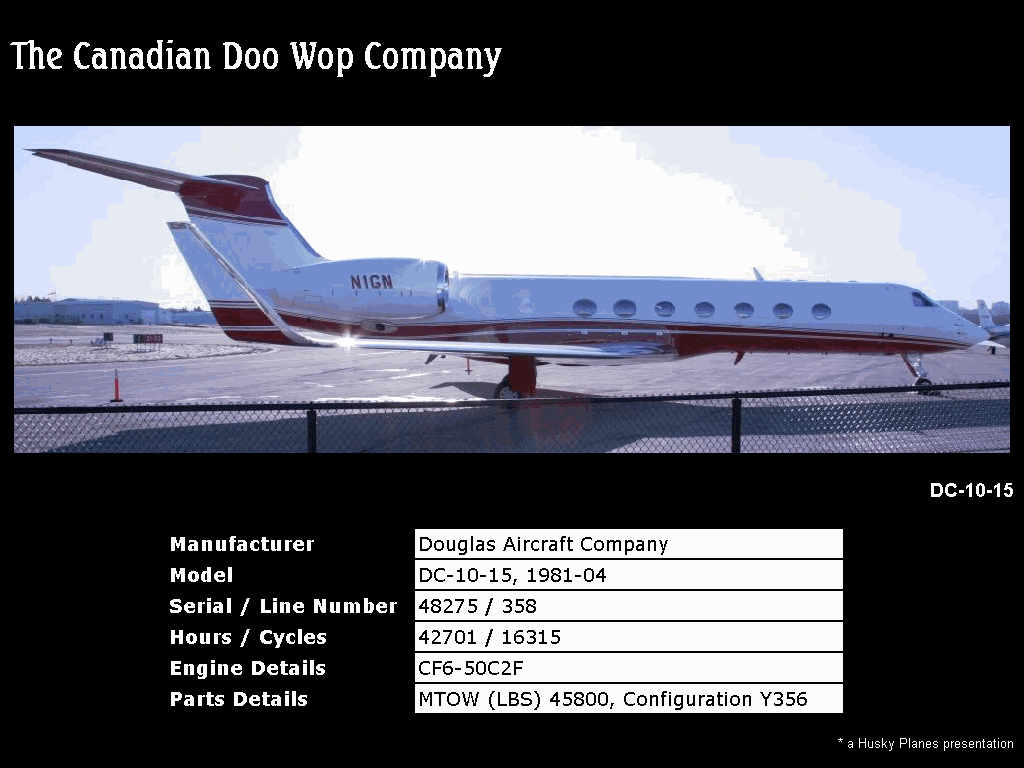
Roy Summerville is responsible for finding an aircraft for a potential customer, a Canadian Doo Wop music group. He created a project environment for his "Can-Do" project, which he shares with other members of his team.
9203_31808_2.png Stage 1: Organizing the environment
Roy started by setting up a plan for his Can-Do project:

1182005_33727_0.png

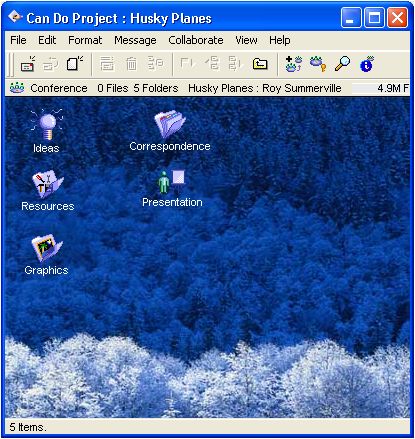
Based on the plan, this is the project conference he created.
1102006_44202_0.jpg
He has created a conference structure that allows his team to:
•       brainstorm using a conference called Ideas
•       gather information within the Resources and Graphics conferences
•       showcase the final product in a conference called Presentation.
9203_31808_2.png Stage 2: Scheduling
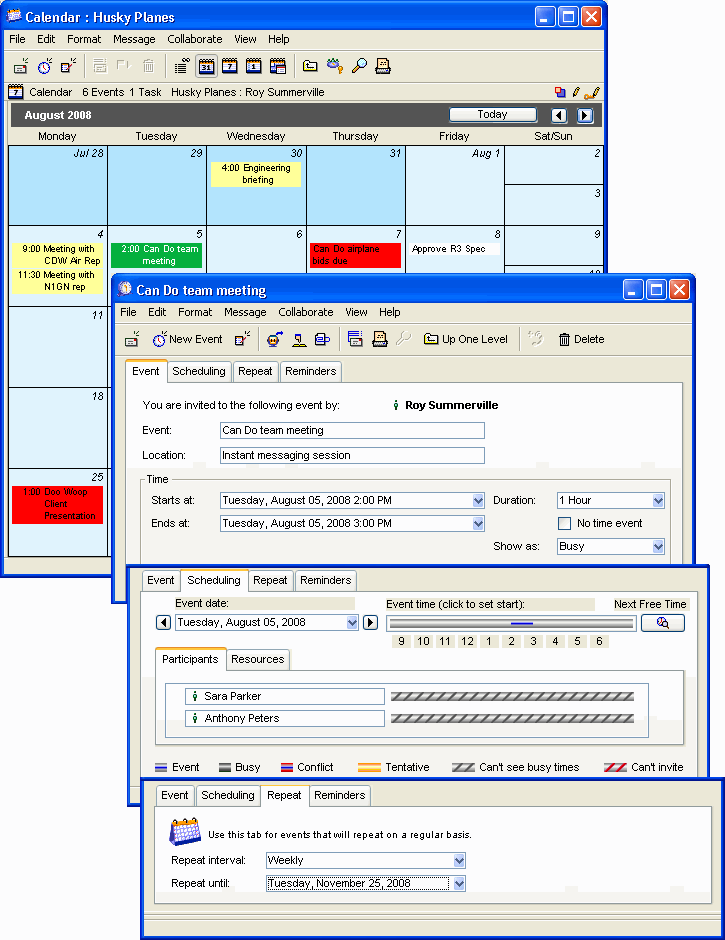
The team uses their personal calendars to schedule meetings and milestones.
1102006_50052_0.png
9203_31808_2.png Stage 3: Conducting meetings
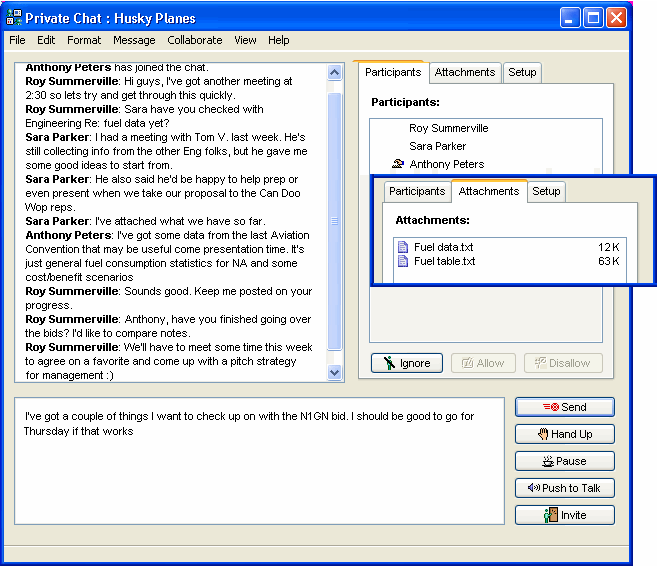
The team uses instant messaging to hold meetings when they can't get together. Here is an online meeting they held recently.
1102006_50132_1.png
Roy compiles the minutes into a FirstClass document.
1102006_50157_2.jpg
9203_31808_2.png Stage 4: Brainstorming
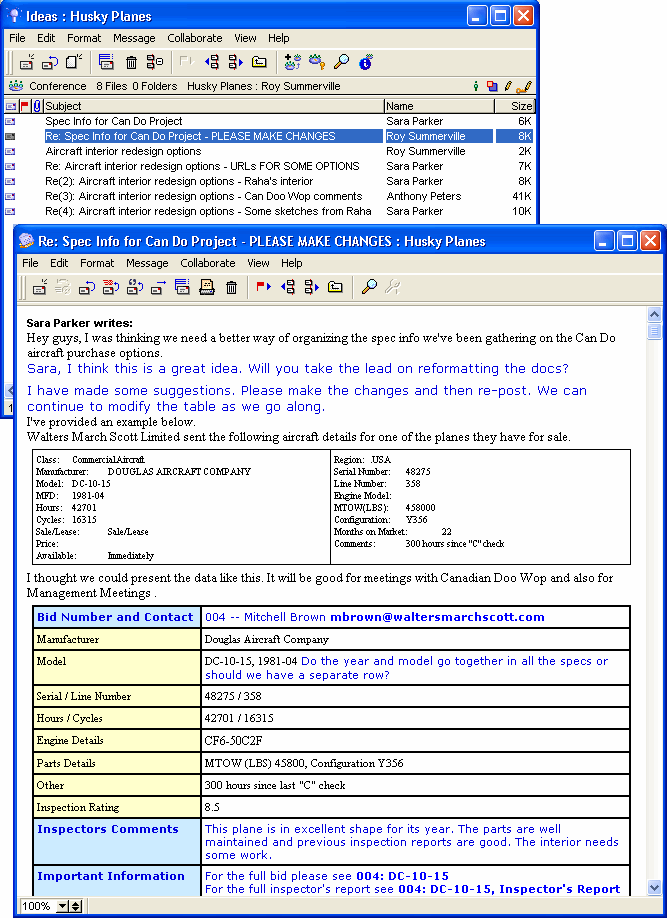
The team uses the Ideas conference to communicate with each other when they are in different locations. If somebody has an idea, they post it there and others can comment on it and build on it.
1102006_52743_3.png
9203_31808_2.png Stage 5: Managing tasks
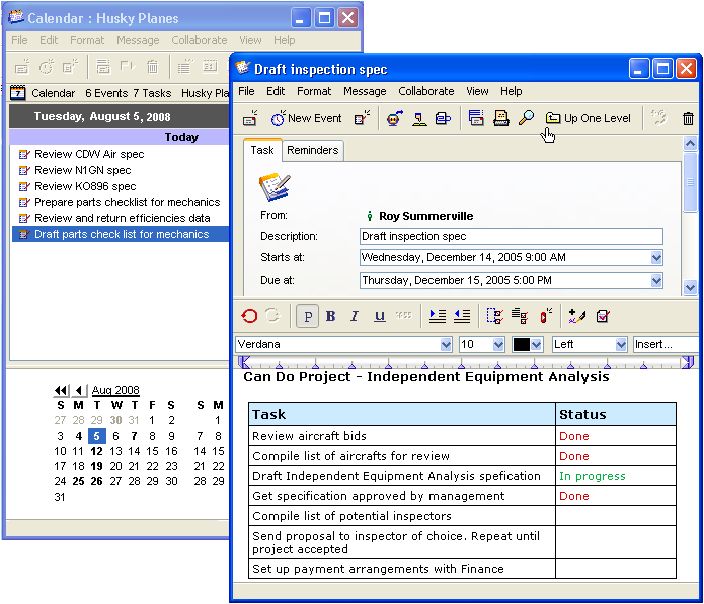
Roy uses his calendar to manage the details of each task.
1102006_52821_4.jpg
9203_31808_2.png Stage 6: Collecting information
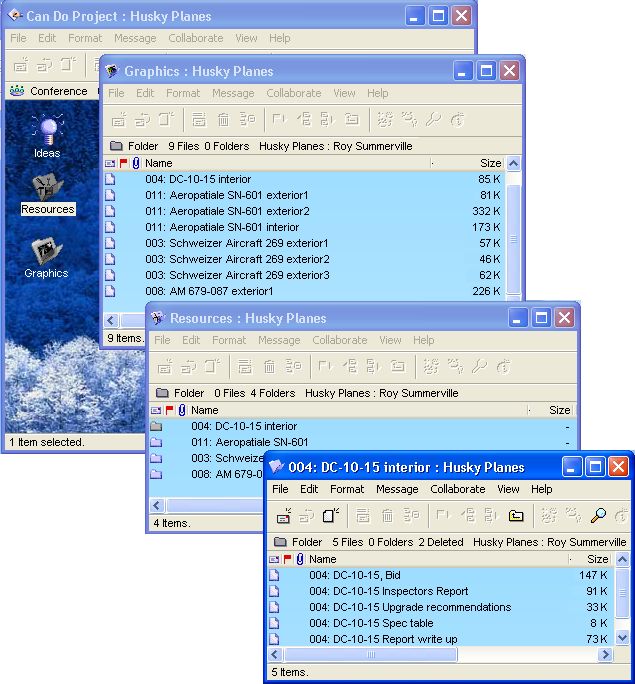
As Roy and his team collect information, they enter their notes into FirstClass documents and store them in the Resources folder or the Graphics folder.
1102006_53044_5.jpg
9203_31808_2.png Stage 7: Compiling the project
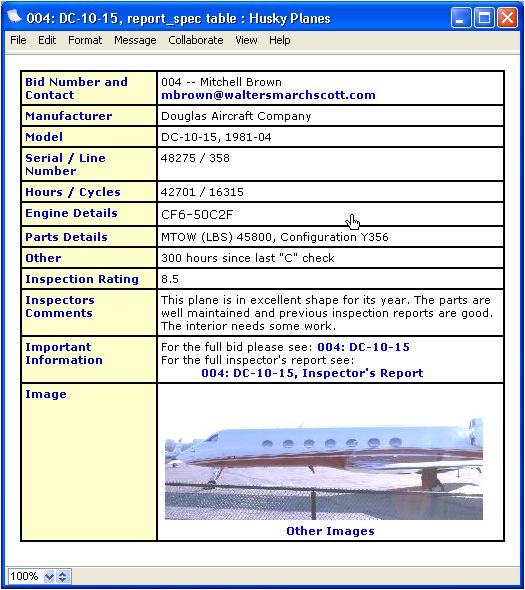
Roy and his team use the Presentation conference to put the final project together. Here is a look at some material from the compiled project.
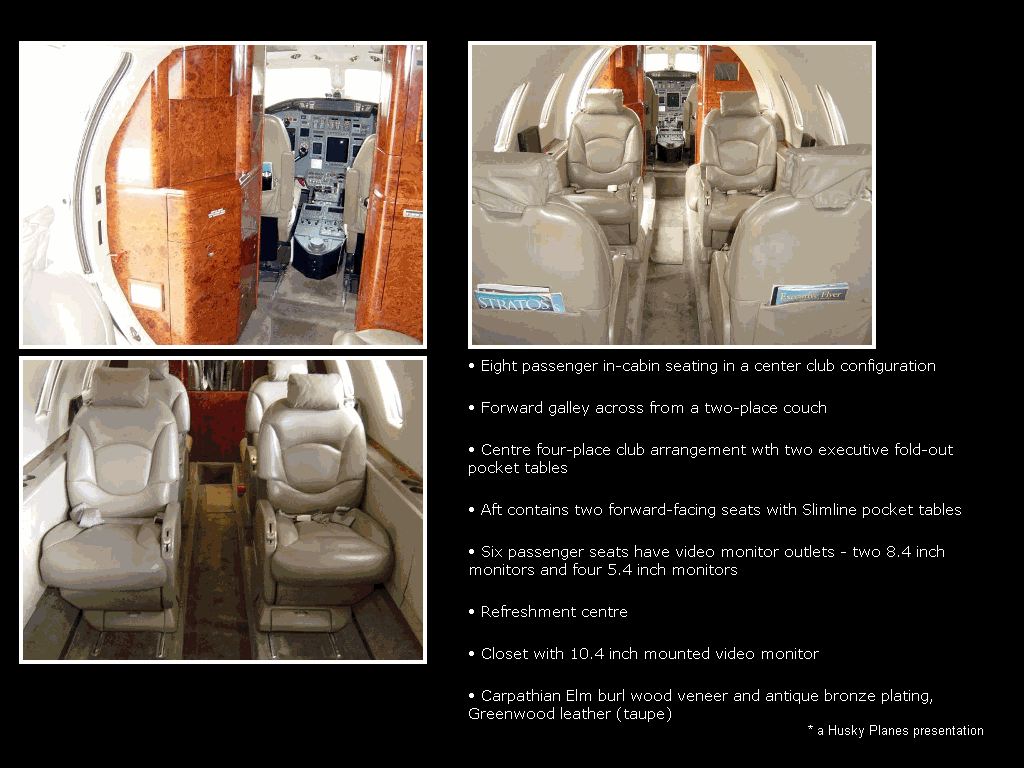
1102006_53118_6.jpg
9203_31808_2.png Stage 8: Presenting the final project
Here are a couple of slides from the presentation.
112006_10208_0.png
112006_11308_1.png