[Image:81903_22607_2.png]Book resources for a presentation Minimum version: FirstClass 8.3 Audience: Business professionals Experience: [Image:9203_22631_1.png] FirstClass applications used: [Image:9203_24337_3.png][ fcp://@fc.onlinehelp.com,%237600229/En/OnlineHelp/Client Help/Calendars ]Calendars [Image:9203_31709_1.png] Summary Looking for a simple way to organize the location and resources you need for your presentation? Consider using a FirstClass calendar. Instead of sending out printed memos and filling out request forms, you can use a group calendar in FirstClass to invite participants, reserve multimedia resources, and book locations. Here is a comparison of the conventional way you may book resources and how you would do it in FirstClass. [Image:92203_31828_0.png] [Image:9203_31709_1.png] Example Michael Green is vice president of Sales and Marketing at Husky Planes. Several times a year he showcases the company's newest products for his sales staff. His presentations usually consist of a promotional videotape from the Marketing department accompanied by a slide presentation. Michael schedules the presentation, invites members of the sales department, and books the boardroom and multimedia resources all at the same time. He doesn't have to leave his office to ensure that his presentation goes off without a hitch. Here are the steps he takes to handle the arrangements: STEP 1: Schedule presentation Michael schedules the presentation in the Sales Dept Calendar by creating a new event entitled New Product Promo. This is the new event he created. [Image:8102006_91145_0.png] STEP 2: Reserve venue Each resource or location Michael wishes to book has its own calendar. When he schedules an event, he simply enters the name of the resource calendar or location calendar on the Scheduling tab of the event he is booking. If there is a time conflict, it will show immediately and he can decide how to handle it. Michael reserves the company's mid-sized boardroom using the Scheduling tab. STEP 3: Reserve resources Michael also reserves a large screen television, a video cassette recorder, and a video projector. This is the Scheduling tab where he books the resources. [Image:882006_33623_2.png] When he entered his requests on the Resources tab for the New Products Promo event, a new event appeared in each item's calendar. Husky Planes' IT department monitors the resource and location calendars and ensures that requested equipment is ready for use when scheduled. This is the calendar for the video projector that John booked. [Image:882006_32721_0.png] STEP 4: Invite participants Michael invites the members of the sales department by entering their names on the Scheduling tab. From this screen, he sees who may have a time conflict. He adjusts the date and time as needed (the booked times for the resources and locations will also change automatically). The presentation will then appear in each of their personal calendars. This is the Scheduling tab where he invites participants. [Image:882006_33910_4.png] [Image:9203_31709_1.png] Variation If Michael has content he wishes to share before the presentation, he can attach it to the calendar event at the time of scheduling or type it in the text box on the event form. This is the event he created. He attached a file for review and included an agenda in the text area. [Image:882006_32224_4.png]
   
F1014
 
 
Home  •  Help  •  Practical Uses for FirstClass  •  Developing Projects - Education  •  Project Stages  •  F1014
72203_112759_0.pngConducting meetings
 Traditional meetings
You may allow class time for project meetings, or students may meet outside of class, or both. Traditional project teams who meet outside of class may gather at a library or somebody's home to discuss the project. The secretary may take the minutes of the meeting, type them out, and then photocopy them for each member of the team.
If a member isn't able to attend the meeting due to location or other constraints, they may have to rely on the minutes of the meeting to try to catch up, if the minutes were even taken.
9203_31808_2.png FirstClass is a conference room
While FirstClass allows you to schedule and coordinate these meetings, it also provides a means of conducting online meetings. Students can get together at their own computers at the scheduled time to participate, regardless of their location. This makes it easier for project teams to hold meetings, especially when distance, weather, or illness is an issue, and it gives shy students an opportunity to contribute in a less-threatening environment.
A session that is in progress will have a red balloon in the top right hand corner added to the standard icon.
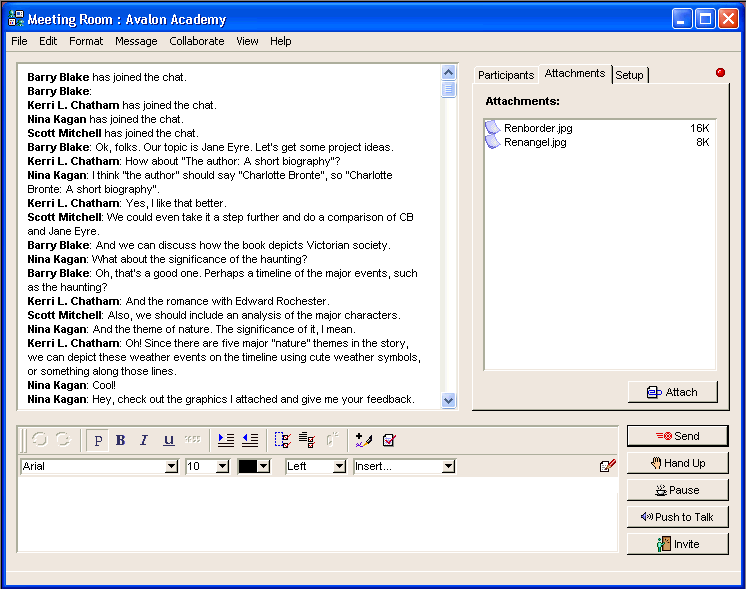
6104_11849_1.png
This is a sample public instant messaging session.
6804_110823_0.png
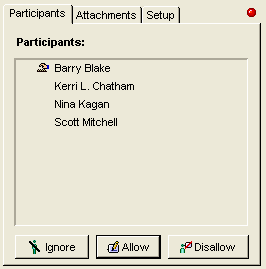
Students can see who is typing on the Participants tab. If desired, the session can be moderated.
32904_40126_2.png
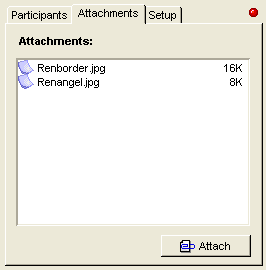
Students can share files during the session by adding them to or downloading them from the Attachments tab.
6804_110853_1.png
Further, if students wish, they can initiate a meeting with any student at any time if they are both online. This makes it easy to conduct meetings or brainstorm with others at their leisure.  
9203_31808_2.png FirstClass is a secretary
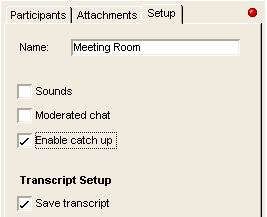
The creator of the instant messaging session can easily save a transcript of the open session right from the Setup tab. It is automatically saved to the creator's Mailbox when the session closes.
6704_112150_0.png
The secretary can edit the file to annotate portions of the meeting, or use it as a basis to summarize the points of the meeting.
9203_31808_2.png Discussion conferences
If not all of the project members are available at once for an online meeting, they can also have a discussion through a conference. A team member may post questions, comments, information, or anything else that may be brought up at a meeting, and post it to a conference. As other members log in, they can read the posting and reply to it. All of the members can contribute at their own convenience, and each topic is sorted (or "threaded") based on subject.
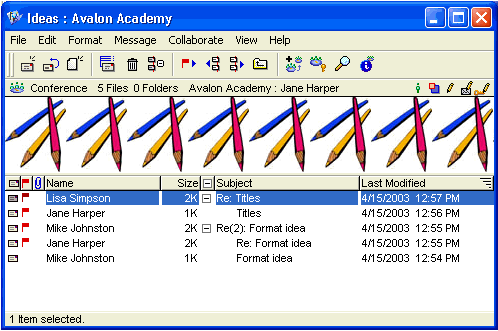
This is a set of discussions in a conference. They are sorted by thread.
5703_13108_5.png
9203_31808_2.png The next step
Now that students can use FirstClass to schedule and hold meetings, it is time for them to start brainstorming among themselves.