 Personalize your emails Personalize your emailsMinimum version: FirstClass 8.3 Audience: Any FirstClass user Experience:  FirstClass applications used:
 Summary SummaryGetting ready to send yet another email? Add a little excitement by changing the color of the background, adding a favorite image, or both. You can add an image based on a theme (such as Christmas or a birthday), insert a standard logo or header, or simply choose an image you like. Take it a step further by adding images and color to FirstClass documents, presentations, conferences, and your Desktop too.
 Note NoteBackgrounds will only display if you are sending the email within your FirstClass system.
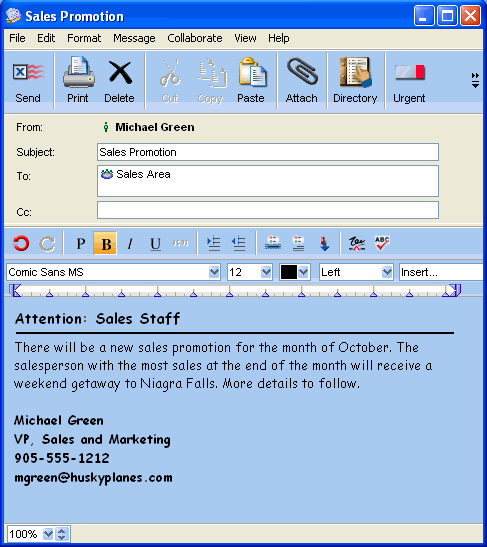
Example: Adding colorMichael Green likes to add color to his emails. He opens a new email message and does the following:
1 He chooses Format > Format Background from the menu.
2 He checks the box that says Use color.
3 He selects the desired color from the dropdown list box and clicks OK.
 Example: Adding a background image Example: Adding a background imageJohn Smith is a teacher at Avalon Academy. He likes to add images to his emails to make them more interesting to his students. To add a background, John does the following:
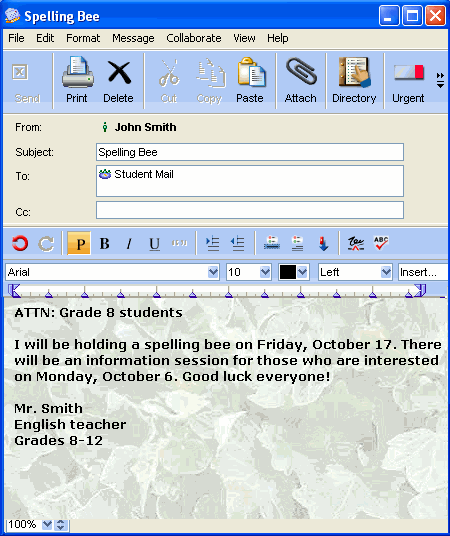
1 He chooses Format > Format Background from the menu.
2 He selects Use background and clicks Browse.
3 He browses his hard drive for the image he wants to use.
NoteAs a default, the image will be tiled. This means it will repeat throughout the message.
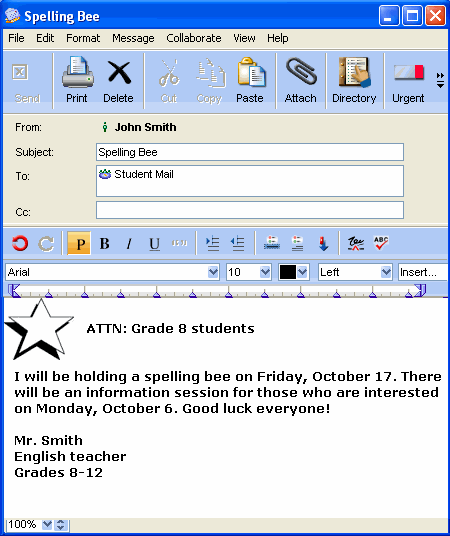
 To change the image position from tile to top left, John changes the Image position from Tile to Top Left.
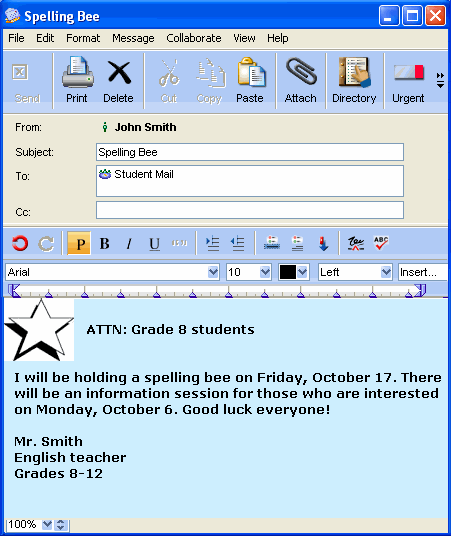
 John decides to add color to his background, so he follows the steps above (Example: Adding color) to add a color.
 More information More informationYou can also insert the image as an image file, rather than a background. To accomplish this, choose Image from the Insert dropdown list box rather than Background.
Choose a Background if you want to tile one image throughout the message or document, or put an image in the top left corner as a logo. Choose Image for all other uses.
| ||
