[Image:81903_22607_2.png]Book resources for a presentation Minimum version: FirstClass 8.3 Audience: Business professionals Experience: [Image:9203_22631_1.png] FirstClass applications used: [Image:9203_24337_3.png][ fcp://@fc.onlinehelp.com,%237600229/En/OnlineHelp/Client Help/Calendars ]Calendars [Image:9203_31709_1.png] Summary Looking for a simple way to organize the location and resources you need for your presentation? Consider using a FirstClass calendar. Instead of sending out printed memos and filling out request forms, you can use a group calendar in FirstClass to invite participants, reserve multimedia resources, and book locations. Here is a comparison of the conventional way you may book resources and how you would do it in FirstClass. [Image:92203_31828_0.png] [Image:9203_31709_1.png] Example Michael Green is vice president of Sales and Marketing at Husky Planes. Several times a year he showcases the company's newest products for his sales staff. His presentations usually consist of a promotional videotape from the Marketing department accompanied by a slide presentation. Michael schedules the presentation, invites members of the sales department, and books the boardroom and multimedia resources all at the same time. He doesn't have to leave his office to ensure that his presentation goes off without a hitch. Here are the steps he takes to handle the arrangements: STEP 1: Schedule presentation Michael schedules the presentation in the Sales Dept Calendar by creating a new event entitled New Product Promo. This is the new event he created. [Image:8102006_91145_0.png] STEP 2: Reserve venue Each resource or location Michael wishes to book has its own calendar. When he schedules an event, he simply enters the name of the resource calendar or location calendar on the Scheduling tab of the event he is booking. If there is a time conflict, it will show immediately and he can decide how to handle it. Michael reserves the company's mid-sized boardroom using the Scheduling tab. STEP 3: Reserve resources Michael also reserves a large screen television, a video cassette recorder, and a video projector. This is the Scheduling tab where he books the resources. [Image:882006_33623_2.png] When he entered his requests on the Resources tab for the New Products Promo event, a new event appeared in each item's calendar. Husky Planes' IT department monitors the resource and location calendars and ensures that requested equipment is ready for use when scheduled. This is the calendar for the video projector that John booked. [Image:882006_32721_0.png] STEP 4: Invite participants Michael invites the members of the sales department by entering their names on the Scheduling tab. From this screen, he sees who may have a time conflict. He adjusts the date and time as needed (the booked times for the resources and locations will also change automatically). The presentation will then appear in each of their personal calendars. This is the Scheduling tab where he invites participants. [Image:882006_33910_4.png] [Image:9203_31709_1.png] Variation If Michael has content he wishes to share before the presentation, he can attach it to the calendar event at the time of scheduling or type it in the text box on the event form. This is the event he created. He attached a file for review and included an agenda in the text area. [Image:882006_32224_4.png]
   
F4018
 
 
Home  •  Help  •  M0  •  Practical Uses for FirstClass  •  Project Management - Business  •  Project Stages  •  F4018
72203_112759_0.pngPresenting and showcasing
 Traditional presentations
Once the final project has been put together, you may need to present it. Traditionally, presentations may include cardboard pictures, numerous photocopies prepared for handouts, and hair-pulling to organize and secure resources such as an overhead projector. By creating the projects in a FirstClass environment, you eliminate the need to organize huge presentation models and the time required to organize resources.
9203_31808_2.png FirstClass presentations
When the team prepares the presentation, they can compile their notes in a single document. Each "slide" is separated within the document using a page break. You can display graphics and point form notes, just like the Microsoft Powerpoint presentations you may be used to.
To start the slide show, you simply choose Show Presentation from the menu.
These are the first couple of slides in a sample Sales presentation.

112006_10208_0.png
112006_11308_1.png
9203_31808_2.png Booking resources
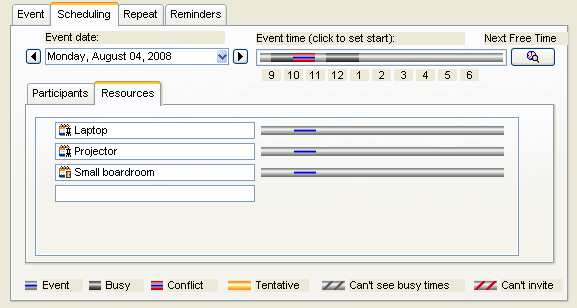
To present this project, you will require a computer and possibly a projector. These can be booked through the use of resource calendars. Each piece of equipment that can be booked has its own calendar. You will book the presentation in a group calendar or personal calendar, and then, on the Resources tab, you will list the equipment you require. Not only does FirstClass schedule the presentation, but it automatically books the required equipment too. You won't need to run around making sure the equipment will be available or check where it will be.
Your organization may handle the booking of resources in a couple of different ways:
•       It may rely on employees to retrieve their own equipment once they have signed it out through the appropriate resource calendar.
•       It may have IT staff that monitors each resource calendar and makes sure the required equipment is in the appropriate location when you need it.
This is the Resources tab where you can book the resources you need.
112006_14131_2.png
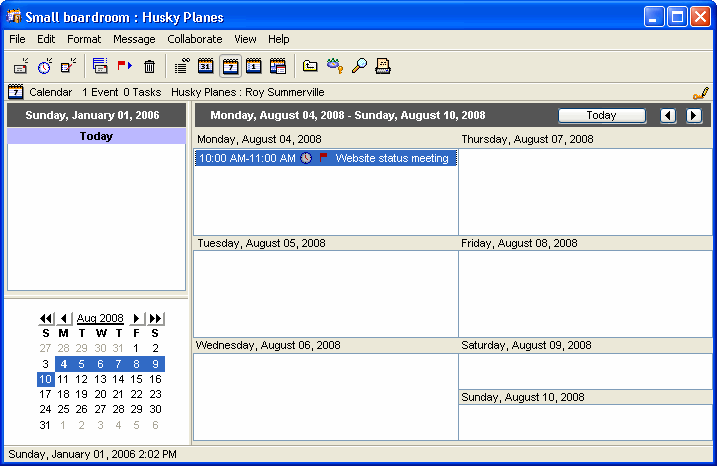
There are also calendars to let you book specific locations, such as a small boardroom or large conference room.  These location calendars work the same way as the resource calendars.
This is a location calendar for the small boardroom.
112006_14308_3.png
9203_31808_2.png Traditional showcasing
Once you have presented the product, or instead of presenting it, you may want to showcase it for others to view, review, or use. Showcasing creativity online is a wonderful way to promote a product to customers, inspire employees, and generate new ideas. Traditionally, you may display a product by passing around an email or a handout.
FirstClass makes it easy to showcase work to peers and customers, all online.
9203_31808_2.png FirstClass showcasing
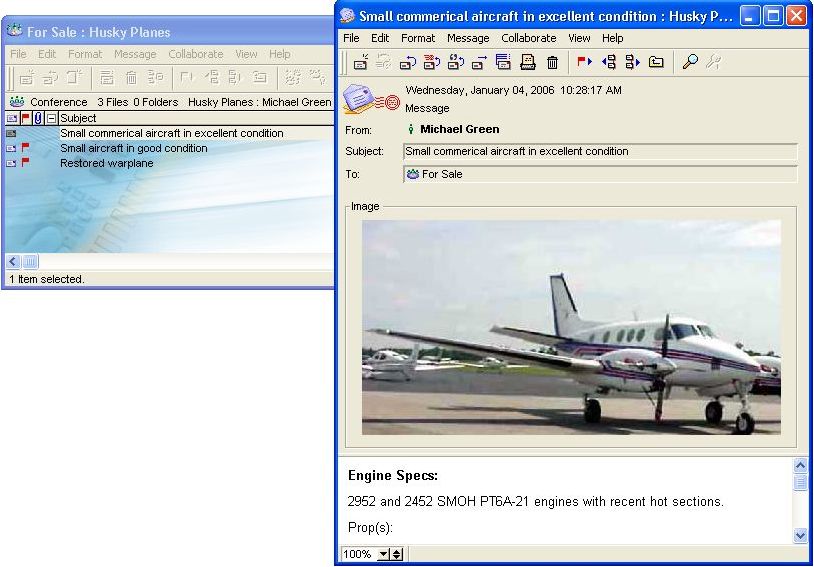
You can display the project in FirstClass in a number of ways. You can make them available to peers and/or the rest of the company through public conferences, or to customers by making those public conferences available over the web. You can limit the view to customers by giving them guest accounts with passwords. This way, customers can see what you want them to in a secure environment. It also eliminates the need to pass around a paper product.
This is a sample of how employees may showcase a product in a public conference.
1102006_45745_0.jpg
This conference can also be made available over the web.