 Maintain a product focus group Maintain a product focus groupMinimum version: FirstClass 8.3
Audience: Business professionals Experience:  FirstClass applications used:  Summary SummaryWhen you think of a focus group, you probably picture a group of people in a room around a table. There may be a person who is responsible for calling everyone to arrange a convenient time to meet, creating and distributing surveys, and so on.
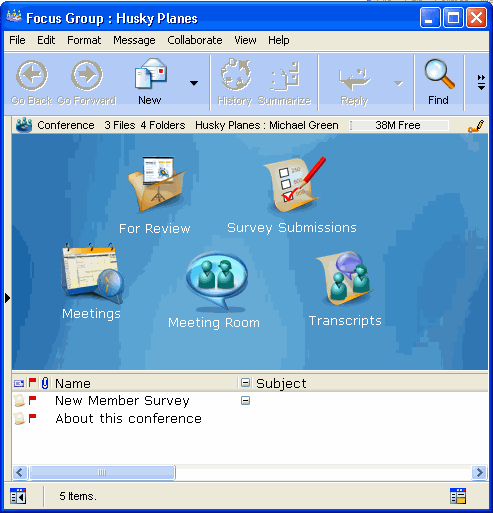
What if you can't get everybody in one room at the same time? Why not use a FirstClass conference to manage your focus group? You can post and collect surveys, post information for review, include movie files, sound files, or any other required information. You can use a calendar to manage focus group meetings, and folders to archive information.
You can conduct meetings using a chat room or teleconferencing, and focus group members can use the conference to post questions or thoughts and contribute to ongoing discussions. If you are conducting the meeting through a chat room, you can also save a transcript.
ExampleMichael Green is the manager of Sales and Marketing at Husky Planes. His company wants to set up a focus group for a new product they are introducing, so Michael decides to manage the focus group using FirstClass. He does the following:
1 He creates a Focus Group conference on his Desktop.
2 He adds the necessary containers to the Focus Group conference:
• a conference to submit surveys privately (Survey Submissions)
• a calendar to book meetings (Meetings)
• a conference to post review material (For Review)
• a public chat room to conduct online meetings (Meeting Room)
• a folder to store meeting transcripts (Transcripts).
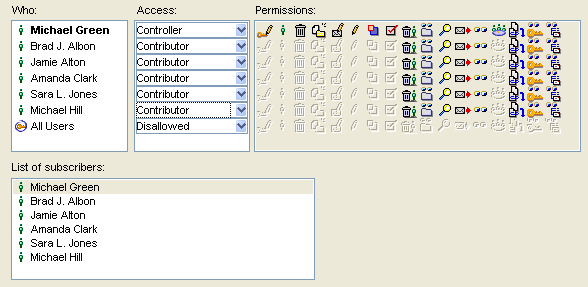
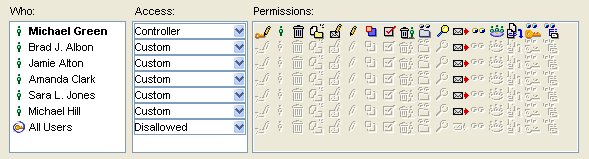
 3 He assigns permissions to the focus group participants and subscribes them to the conference.
 Completing surveys
Focus group members open surveys posted in the conference, and then submit them to the Survey Submissions subconference. This conference has Send only permissions so members can't look at each others' submissions.
 Booking meetings
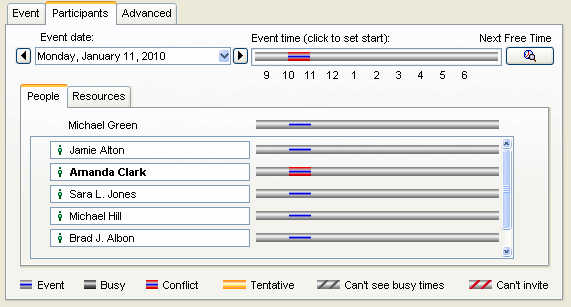
When Michael wants to book a focus group meeting, he posts it in the group calendar. By entering participants' names on the Scheduling tab, he can see who has a conflict with the selected date and make adjustments accordingly.
 Reviewing material
If Michael wants to present something to the group for review, such as a sound file or a movie, he uploads the file to the For Review conference.
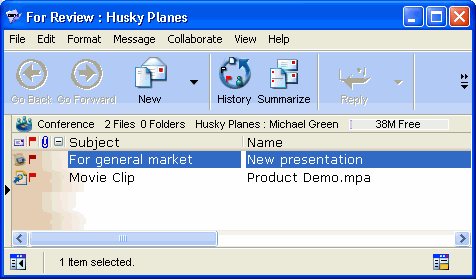 Members access this conference at their convenience and review the material for discussion. In the meantime, questions and answers are posted to the Focus Group conference for all to see. Conducting meetings
Michael holds the focus group meetings using a chat room. At the scheduled time, members simply open the chat room and start participating.
In the session below, Sara Jones joined late, but the transcript to date is immediately posted so she can catch up.
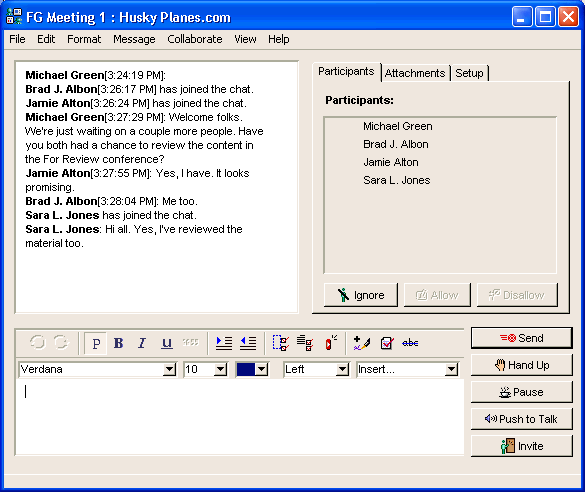  Note NoteThe ability to let participants catch up (Enable catch up) is set on the Setup tab.
Recording minutes
After the meeting, Michael uses the mouse to select the transcript in the transcript pane, and then copies it into a FirstClass document. He then reviews the transcript and puts it in the Transcripts folder.
VariationIf Michael prefers, he can hold a teleconferenced meeting instead of an online meeting, and then manually enter his notes into a FirstClass document and post them to the conference.
Another option for recording minutes is to select "Save transcript" on the Setup tab, and then protect the chat room after the meeting. This will hide all of the panes except the transcript pane.
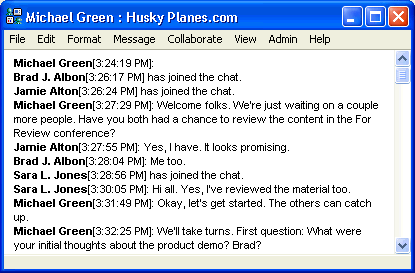 Then Michael could drag the chat room into the Transcripts folder like a document, and create a new chat room for the next meeting. NoteThis option requires the ability to create chat rooms.
| ||
