 Publish a newsletter Publish a newsletterMinimum version: FirstClass 5.5 Audience: All users Experience:  Features we use:
 conferencesconference permissionsdocumentscalendars, public conferencesconference permissionsdocumentscalendars, public Summary SummaryWant to keep your community informed of recent news? Publish and distribute a newsletter using FirstClass. Send the newsletter as an email message to your readers. Reach a wider audience by posting it on your web site.
ExampleMelissa Stewart is a Marketing Manager at Husky Planes. To keep existing and potential customers informed about company news, she creates a newsletter in FirstClass to email to customers and to post on the Husky Planes web site.
Setting up the newsletter workspace Melissa asks the FirstClass administrator to create a new user account with the user ID "HP Newsletter". This account is used to email the newsletter to subscribers. In addition, subscribers will see the From field as HP Newsletter rather than a person's name.
Once the newsletter account is created, she logs in and creates a Newsletter conference with the following objects:
• a conference to store the newsletter drafts and reviews (Reviews)
• a conference to store archived newsletters (Archives)
• a conference to collect and store newsletter ideas (Newsletter Dropbox)
• a document that houses the newsletter template (Template)
• a folder for newsletter processes (Newsletter processes).
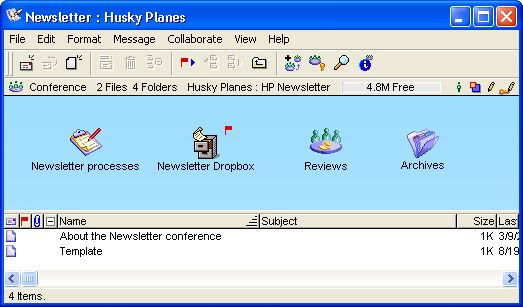 She also creates a mail list in the Contacts folder to store the subscribers' email addresses. Melissa assigns appropriate permissions for the newsletter production team to access the Newsletter conference and subscribes them so that the conference appears on their FirstClass Desktops. 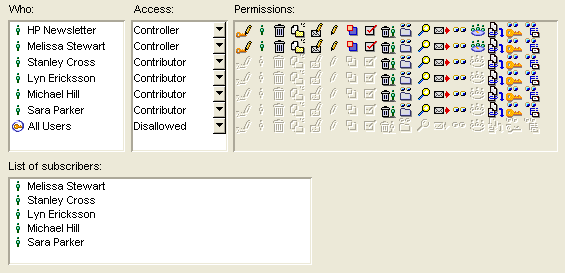 She also sets up the same permissions for each of the subconferences. The newsletter production team writes process documents and stores them in the Newsletter processes folder. 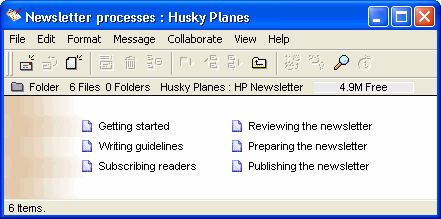 The team uses the Newsletter dropbox conference to send feedback and article ideas. 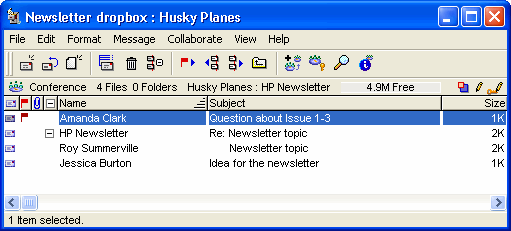 The team posts and reviews newsletter articles in the Content reviews conference. Once an article is edited and approved, the article and review threads are moved into the appropriate newsletter issue folder. 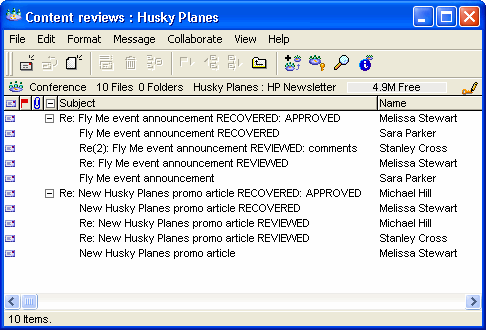 Melissa creates an email template for the first issue of the newsletter by copying and pasting the newsletter template document content into a new message in the Mailbox. She types Husky Planes Newsletter, Issue 1-1 in the subject field and leaves the other fields blank. 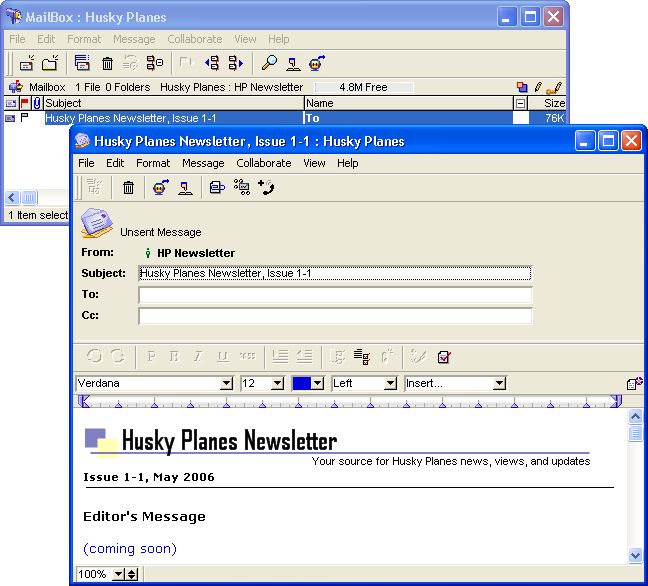 When articles have completed the editing process, Melissa copies them into the email newsletter template in the Mailbox. Once all of the newsletter content is approved and the newsletter email is properly formatted, the newsletter is ready to be posted on the company web site and sent out to subscribers. Posting the newsletter on the company web site
Melissa asks the FirstClass administrator to create a conference in the WWW folder called Newsletter and to assign Reader permissions to allow all users to view the conference on the Husky Planes web site. The FirstClass administrator gives Melissa Controller permissions to this conference and subscribes her to it. Once Melissa sees the Newsletter conference on her FirstClass Desktop, she changes the conference name to show that the conference is part of the Husky Planes web site.  Melissa creates a home page document for readers that contain links to the different newsletter issues. 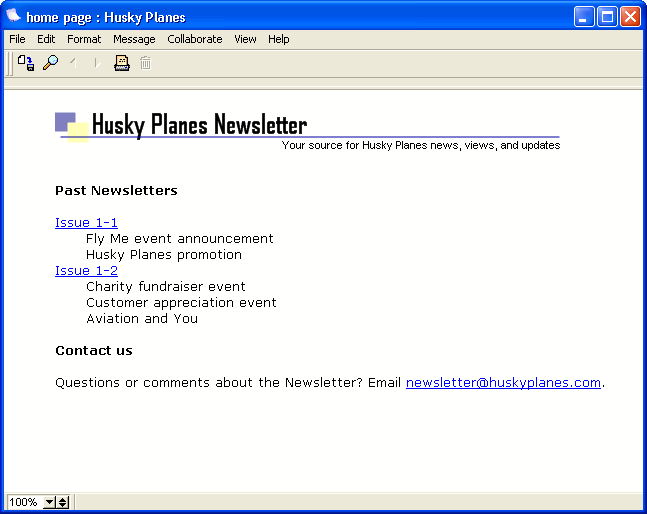 From the Newsletter user account, Melissa forwards a copy of the newsletter to the Newsletter conference on the web site and updates the home page. The newsletter can now be viewed on the company web site. 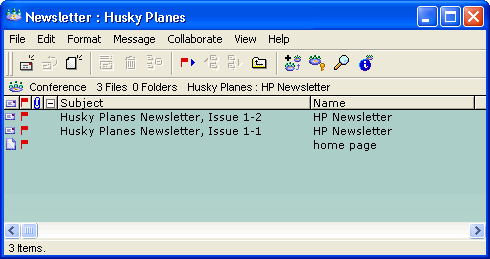 More information More information Tips for your newsletter Tips for your newsletter• Long newsletters may be cumbersome to scroll through. Consider creating a table of contents containing links that jump to relevant articles.
• Create graphics in .png format to decrease the file size of your newsletter.
• If you have a long mail list, put it in the Bcc field of your email and address the To field back to the newsletter account.
| ||