 Mentor a student teacher Mentor a student teacherMinimum version: FirstClass 5.5 Audience: Teachers Experience:  Features we use:
 conferencesconference permissionsstationery documentsdocuments conferencesconference permissionsstationery documentsdocuments Summary SummaryAre you mentoring a student teacher this year? Use a FirstClass conference to hold preparation materials, processes, and assessments. From one location, your interns can manage their work, and you can make notes, record assessments, and check in on what they are doing.
ExampleJohn Smith is a teacher at Avalon Academy. His new student teacher, Al Slate, is responsible for preparing and delivering some of the lessons, leading some class discussions, and providing extra assistance to students who are falling behind or need additional work.
To make sure Al has all the information he needs to learn about the class and to track his progress, John creates a new conference on his FirstClass Desktop called Intern Work and adds the following containers to the conference:
• a Processes folder to store processes and instructions
• a Performance reviews conference to store performance reviews.
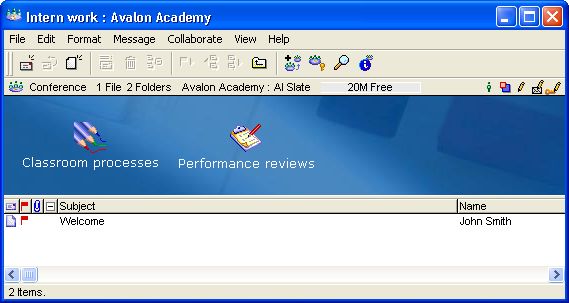
This is the conference John created.
 Setting permissions John sets permissions for the Intern Work conference so that he and Al have full control over the conference.   Note NoteJohn sets "Message expiry (days)" to Never on the permissions forms for all conferences and subconferences to make sure that messages are not automatically deleted (if "Message expiry" is set to a number of days, messages are deleted after that time).
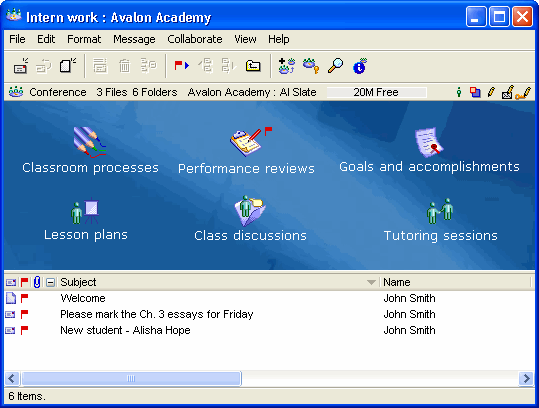
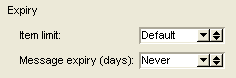 He also sets "Item expiry" to Never on the calendar permissions form so that calendar items are not automatically deleted.  Using the conference to manage intern work Once Al is subscribed to the conference, he creates project folders and documents for his work. John can also post messages to this conference for Al.
 John creates templates as stationery documents in the Performance reviews conference to periodically post reviews of Al's work. 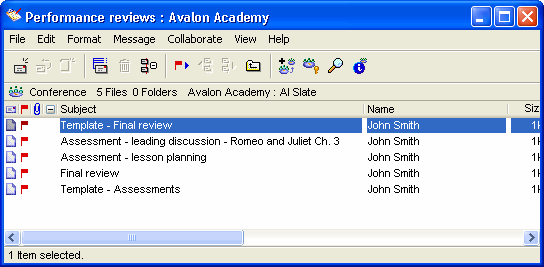 Note NoteTo set the template documents as stationery, Al selected the Stationery field on the Properties form of the document.
At the end of Al's internship, John creates a folder for Al's work and archives his files in that folder. He reuses the Intern Work conference, the Intern Calendar, Processes, and Performance reviews stationery document for future student teachers. 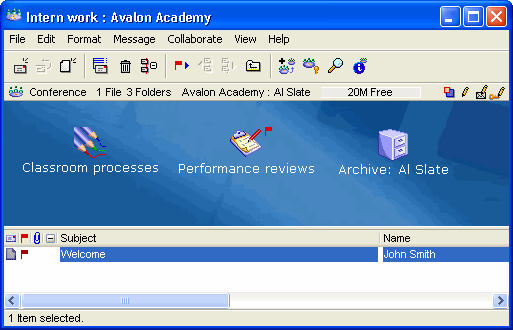 | ||