[ fcp://@fc.onlinehelp.com,%237600229/En/OnlineHelp/Web%20Help/LW2 ]Contents [ fcp://@fc.onlinehelp.com,%237600229/En/OnlineHelp/Web%20Help/LW31 ][Image:81203_43854_21.png][ fcp://@fc.onlinehelp.com,%237600229/En/OnlineHelp/Web%20Help/LW42 ][Image:81203_43840_19.png] [Marker][ fcp://@fc.onlinehelp.com,%237600229/En/OnlineHelp/Web%20Help/LW32#The reading pane ]The reading pane [ fcp://@fc.onlinehelp.com,%237600229/En/OnlineHelp/Web%20Help/LW32#Opening the reading pane ]Opening the reading pane --------------- [Marker]The reading pane When the reading [ fcp://@fc.onlinehelp.com,%237600229/En/OnlineHelp/Definitions/L2018 ]pane is open, it is displayed under or to the right of the main pane. The reading pane displays the contents of any object selected in the main pane. For example, a selected message or document opens in this pane. You can work with objects in the reading pane just as you do when they are opened in the main pane. [ fcp://@fc.onlinehelp.com,%237600229/En/OnlineHelp/Web%20Help/LW32#Top ]Top --------------- [Marker]Opening the reading pane To open the reading pane, click this button: [Image:892006_13851_0.png] This button is only visible if you have the navigation pane open. It [ fcp://@fc.onlinehelp.com,%237600229/En/OnlineHelp/Definitions/L2035 ]toggles through three states. To move the reading pane to the right of the main pane, click this button again. To close the reading pane, click this button a third time. [ fcp://@fc.onlinehelp.com,%237600229/En/OnlineHelp/Web%20Help/LW32#Top ]Top
   
F2048
 
 
Home  •  Help  •  M0  •  Practical Uses for FirstClass  •  101 Uses for FirstClass  •  F2048
81903_22607_2.pngCreate text in company colors

Minimum version:
FirstClass 8.3

Audience:
All users

Experience
:9203_22631_1.png
FirstClass applications used:
            9203_24337_3.pngDocuments
9203_31709_1.png Summary
Would you like to create custom, professional documents using your organization's colors? Create custom colors by specifying the Red Green Blue (RGB) values in the color picker. You can use these colors in headings and text for your emails, memos, letters and more.
 9203_31709_1.png Example
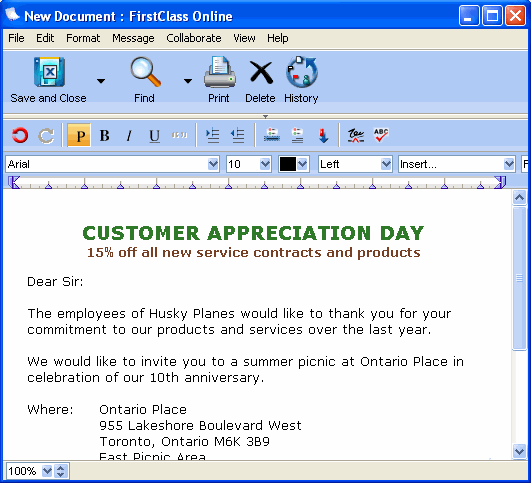
Michael Green is the VP of Sales and Marketing at Husky Planes. He wants to send a letter to current customers about an upcoming promotion. He creates the letter in a FirstClass document, using Husky Planes' corporate colors for his headings.
8102006_104620_0.png
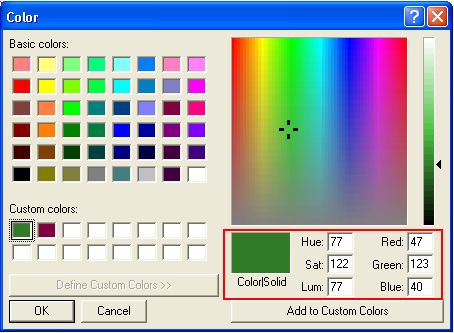
He defines the custom colors by choosing Format > Color > Other Color from the menu, clicking Define Custom Colors, and then entering the RGB values on the color picker.
To add each new color to his palette, he clicks Add to Custom Colors.
1102006_42939_1.jpg