 Post student absences Post student absences(Idea courtesy of Jeff Catania, eLearning Coordinator for Halton District School Board)
Minimum version: FirstClass 8.3 Audience: School administrators Experience:  FirstClass applications used:
 ConferencingDocuments ConferencingDocuments Summary SummaryLooking for an easy way to track students? Use a FirstClass conference to post a list of students who are absent or late each day. Have the secretary create a document for each day listing who is absent or late, so all of the student's teachers are aware of it.
ExampleThe secretary at Avalon Academy receives a list of absent students from each homeroom class each morning. She enters the names in a document and posts them in a staff conference afterwards, so the absent students' other teachers know who is absent. The secretary also records who is late in another document.
The Absent/Late conference contains separate folders for each school day, which in turn house the absent and late documents for each day. The conference also includes a document explaining how to use the conference, and where to look for information about absent or late students. This is what the conference looks like:
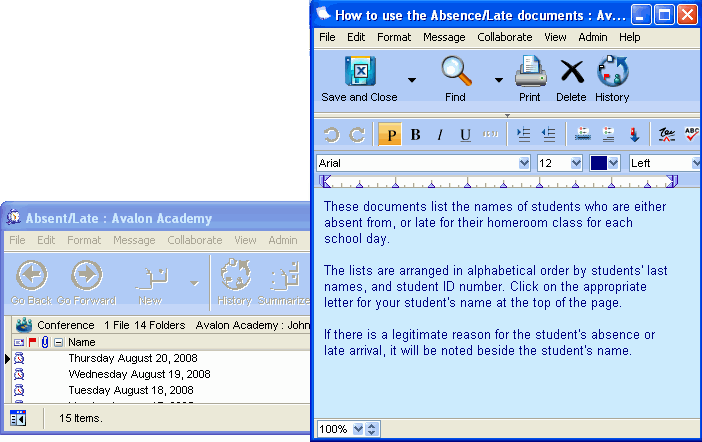 John Smith is a teacher at Avalon Academy. The students in the grade 11 English class are giving their final project presentations today. One of his students, Jas Connery, didn't show up to class, and John is wondering what happened. When class is over, John logs into his FirstClass account and checks the Absent/Late conference to see if there's any information on his absence. This is what he sees when he opens today's Absent Students document (the Late Students document follows the same format): 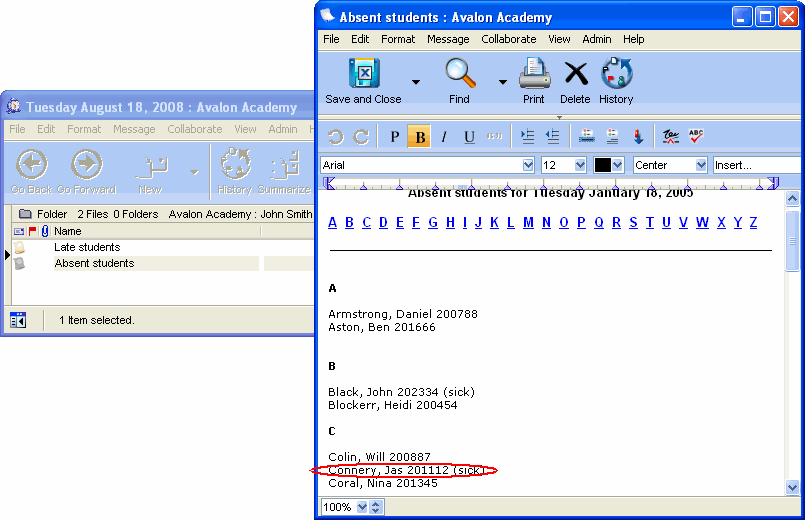 The secretary has recorded that Jas is sick today. By receiving the information that his student is sick, John knows there is a legitimate excuse for his absence, and can now schedule another time for him to deliver his presentation. | ||