[ fcp://@fc.onlinehelp.com,%237600229/En/OnlineHelp/Web%20Help/LW2 ]Contents [ fcp://@fc.onlinehelp.com,%237600229/En/OnlineHelp/Web%20Help/LW31 ][Image:81203_43854_21.png][ fcp://@fc.onlinehelp.com,%237600229/En/OnlineHelp/Web%20Help/LW42 ][Image:81203_43840_19.png] [Marker][ fcp://@fc.onlinehelp.com,%237600229/En/OnlineHelp/Web%20Help/LW32#The reading pane ]The reading pane [ fcp://@fc.onlinehelp.com,%237600229/En/OnlineHelp/Web%20Help/LW32#Opening the reading pane ]Opening the reading pane --------------- [Marker]The reading pane When the reading [ fcp://@fc.onlinehelp.com,%237600229/En/OnlineHelp/Definitions/L2018 ]pane is open, it is displayed under or to the right of the main pane. The reading pane displays the contents of any object selected in the main pane. For example, a selected message or document opens in this pane. You can work with objects in the reading pane just as you do when they are opened in the main pane. [ fcp://@fc.onlinehelp.com,%237600229/En/OnlineHelp/Web%20Help/LW32#Top ]Top --------------- [Marker]Opening the reading pane To open the reading pane, click this button: [Image:892006_13851_0.png] This button is only visible if you have the navigation pane open. It [ fcp://@fc.onlinehelp.com,%237600229/En/OnlineHelp/Definitions/L2035 ]toggles through three states. To move the reading pane to the right of the main pane, click this button again. To close the reading pane, click this button a third time. [ fcp://@fc.onlinehelp.com,%237600229/En/OnlineHelp/Web%20Help/LW32#Top ]Top
   
F2038
 
 
Home  •  Help  •  M0  •  Practical Uses for FirstClass  •  101 Uses for FirstClass  •  F2038
81903_22607_2.pngCreate a recipe book

Minimum version:
FirstClass 8.3

Audience:
All users

Experience
:9203_22631_1.png
FirstClass applications used:
            9203_24337_3.pngConferencing
            9203_24337_3.pngDocuments
9203_31709_1.png Summary
Looking for an interesting project idea for students, or a way to share or keep track of your favorite cookbook recipes? Create a recipe book in FirstClass. Use a folder for each category. Add pictures, comments, and special notes. Take it a step further by letting peers open and add to it.
 9203_31709_1.png Example
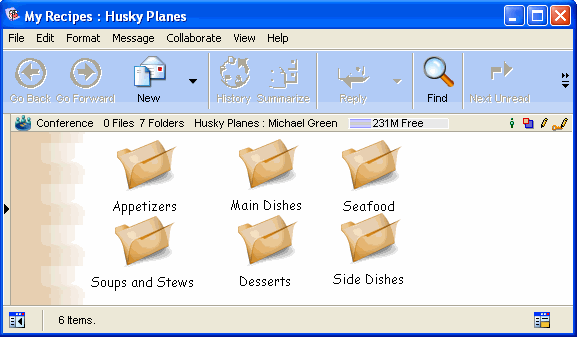
Michael Green is the VP of Sales and Marketing at Husky Planes. He is also an avid cook. He loves to collect interesting recipes and try new ones. He decides to create a recipe book in FirstClass to keep track of his favorites. He starts by creating a conference called My Recipes, and then adding folders for the various categories.
8102006_90552_1.png
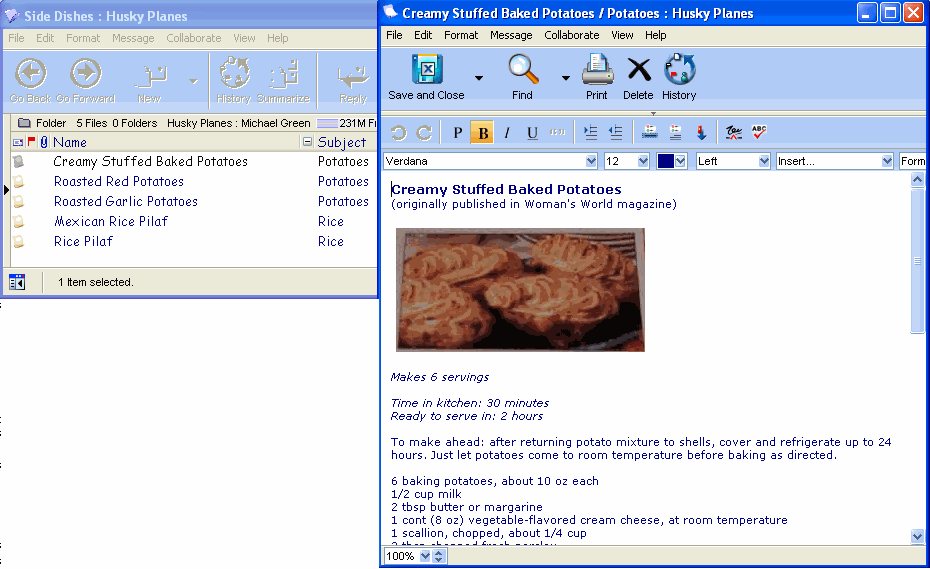
Within each folder is a series of documents containing recipes in that category.
8102006_90339_0.png
He can add nutritional information, pictures, serving suggestions, and any other notes he feels are important.