 Automatically sort incoming messages Automatically sort incoming messagesMinimum version: FirstClass 8.3 Audience: All users Experience:  FirstClass applications used:
 ConferencingMail Rules ConferencingMail Rules Summary SummaryDo you get too much email, making your Mailbox hard to sort through? Try using FirstClass mail rules to automatically file incoming mail into different folders based on sender, subject, and so on. Mail rules can also automatically remove spam.
ExampleMichael Green, the VP of Sales and Marketing at Husky Planes, receives so many messages in his Mailbox over the course of a day that he has decided to use mail rules to help manage his Mailbox.
First, he creates the following folders and conferences to store the incoming messages:
• Personal
This folder receives personal emails he receives during the day.
• Newsletters
This folder receives the newsletters he receives during the month.
• ABC Project
This folder receives incoming email about an ongoing project Michael wants to track.
• Faxes
This folder receives all incoming faxes.
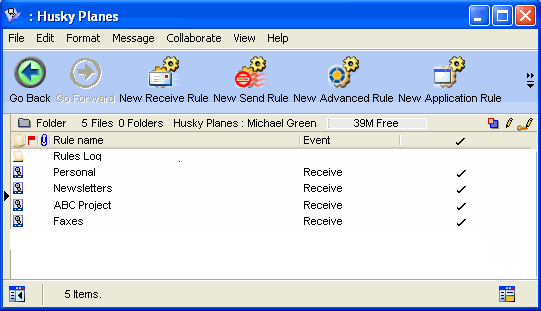
Next, he creates five advanced mail rules in his Mailbox to handle the incoming messages.
1 He opens the mail rules folder by choosing Collaborate > Rules while his Mailbox is the active window.
2 He chooses File > New > New Advanced Rule to create each of the following rules:
Storing personal messages
The first rule, Personal, files messages he receives from friends and family.
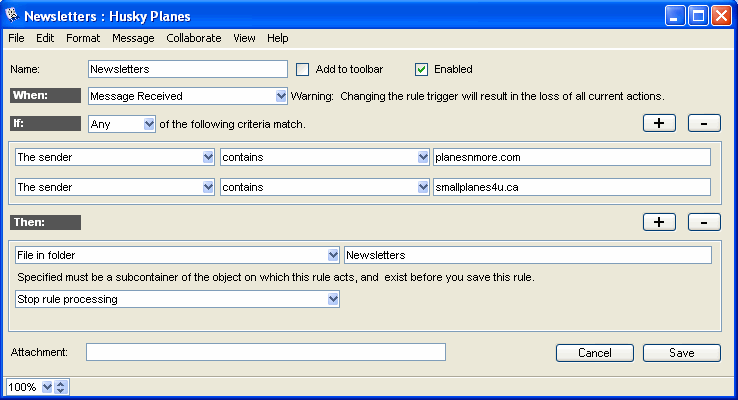
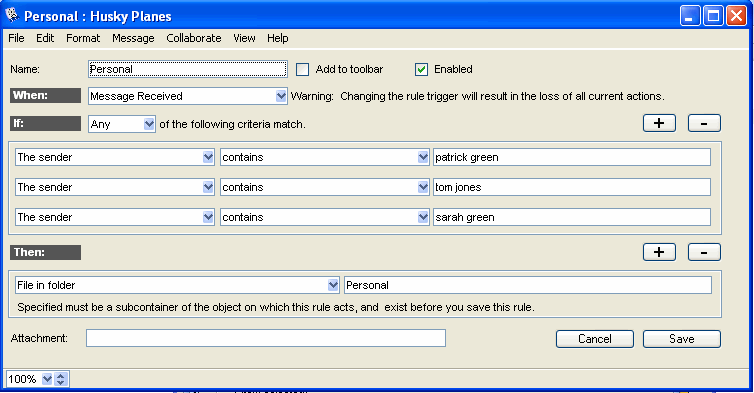 Storing newsletters The second rule, Newsletters, files incoming newsletters he has subscribed to.
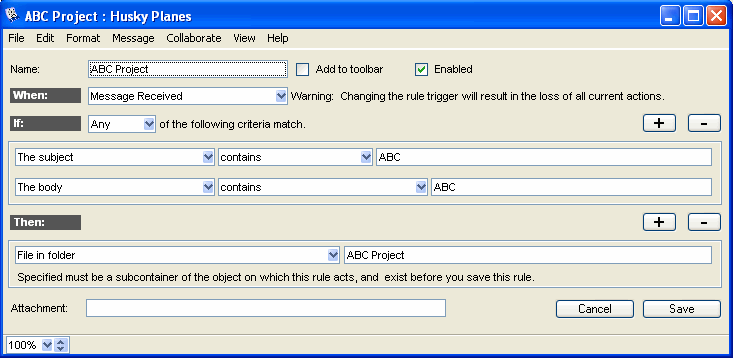
 Storing project correspondence The third rule, ABC Project, files incoming mail containing "ABC" in the message subject or body.
 Storing faxes The fourth rule, Faxes, files all incoming faxes.
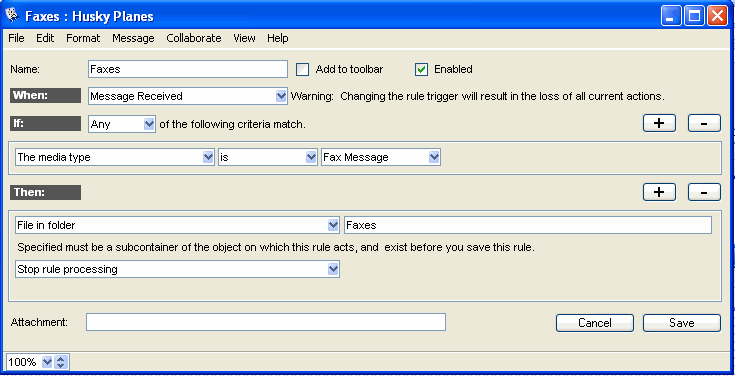 All other mail will be directed to Michael's Mailbox.  Caution CautionThe order of the rules is important. Each rule checks whether the message meets the specific criteria. If it doesn't, it goes to the next rule in the list. Once a condition is met, the rules stop processing. If none of the criteria are met, the message will go to Michael's Mailbox. Here is the list of rules as they appear in the Rules list.
 Variations Variations• Michael also sorted his sent messages to further minimize Mailbox clutter. Click here to find out how he did it.
• When Michael went on vacation, he created some more rules to manage his incoming mail. Click here to see what he did.
| ||