[ fcp://@fc.onlinehelp.com,%237600229/En/OnlineHelp/Web%20Help/LW2 ]Contents [ fcp://@fc.onlinehelp.com,%237600229/En/OnlineHelp/Web%20Help/LW31 ][Image:81203_43854_21.png][ fcp://@fc.onlinehelp.com,%237600229/En/OnlineHelp/Web%20Help/LW42 ][Image:81203_43840_19.png] [Marker][ fcp://@fc.onlinehelp.com,%237600229/En/OnlineHelp/Web%20Help/LW32#The reading pane ]The reading pane [ fcp://@fc.onlinehelp.com,%237600229/En/OnlineHelp/Web%20Help/LW32#Opening the reading pane ]Opening the reading pane --------------- [Marker]The reading pane When the reading [ fcp://@fc.onlinehelp.com,%237600229/En/OnlineHelp/Definitions/L2018 ]pane is open, it is displayed under or to the right of the main pane. The reading pane displays the contents of any object selected in the main pane. For example, a selected message or document opens in this pane. You can work with objects in the reading pane just as you do when they are opened in the main pane. [ fcp://@fc.onlinehelp.com,%237600229/En/OnlineHelp/Web%20Help/LW32#Top ]Top --------------- [Marker]Opening the reading pane To open the reading pane, click this button: [Image:892006_13851_0.png] This button is only visible if you have the navigation pane open. It [ fcp://@fc.onlinehelp.com,%237600229/En/OnlineHelp/Definitions/L2035 ]toggles through three states. To move the reading pane to the right of the main pane, click this button again. To close the reading pane, click this button a third time. [ fcp://@fc.onlinehelp.com,%237600229/En/OnlineHelp/Web%20Help/LW32#Top ]Top
   
F2035
 
 
Home  •  Help  •  M0  •  Practical Uses for FirstClass  •  101 Uses for FirstClass  •  F2035
81903_22607_2.pngCreate a tutorial

Minimum version:
FirstClass 8.3

Audience:
Teachers

Experience
:  9203_22631_1.png
FirstClass applications used:
        9203_24337_3.png Documents
9203_31709_1.png Summary
Want to provide extra help to students without exhausting yourself? Use FirstClass documents to create presentations for tutorials that students can access on their own time.
9203_31709_1.png Example
John Smith is a teacher at Avalon Academy. He has students in his class whose first language is not English, some of whom have a difficult time writing essays. This inspired John to create a tutorial to remind students about how to write a good essay.
To create the tutorial:
1         He selects File > New > New Presentation within a class folder.
2         He adds content as desired, using formatting and graphics.
81203_42521_14.png Note
To add a new page, he generates a page break.
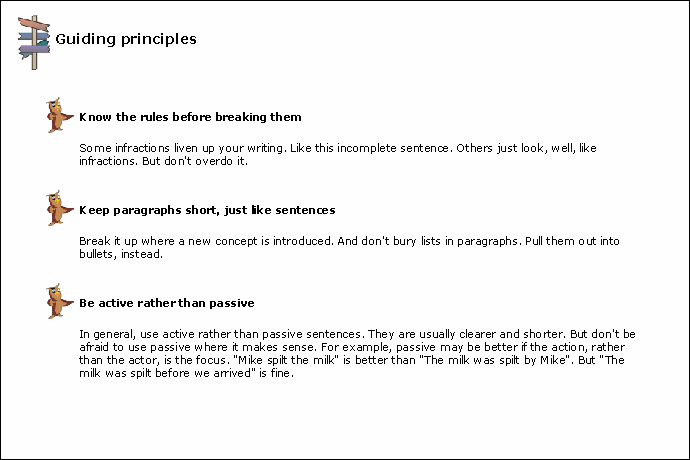
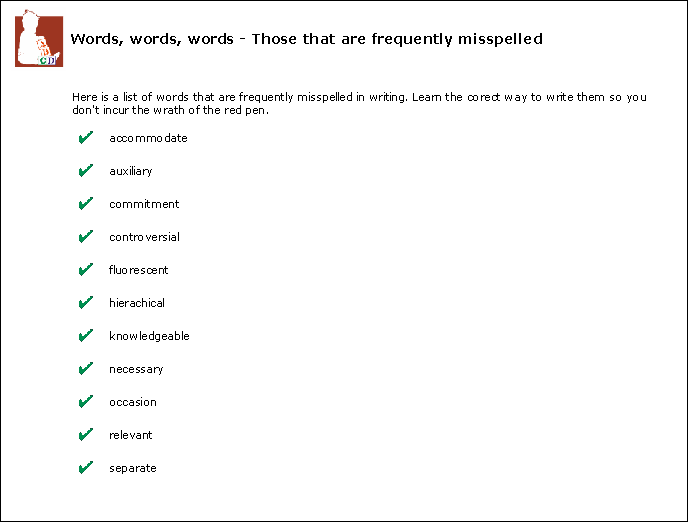
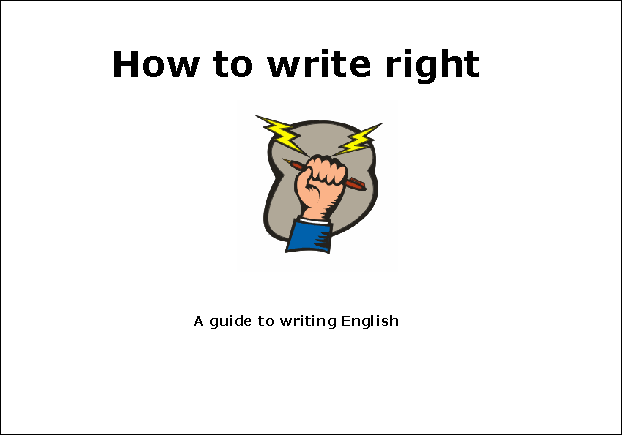
Students can access the tutorial at their own convenience. Here are a couple of snaps from the tutorial that John created.
1252005_103854_1.png
1252005_103720_0.png
1252005_105018_2.png

9203_31709_1.png Variation
John can also create a document of the tutorial and save it in presentation view. To do this:
 1 He selects File > New > New Document within a class folder.
 2 He adds content as desired, using formatting and graphics.
 3 He selects View > Content View > Presentation View.
 4 He saves his presentation.