[ fcp://@fc.onlinehelp.com,%237600229/En/OnlineHelp/Web%20Help/LW2 ]Contents [ fcp://@fc.onlinehelp.com,%237600229/En/OnlineHelp/Web%20Help/LW31 ][Image:81203_43854_21.png][ fcp://@fc.onlinehelp.com,%237600229/En/OnlineHelp/Web%20Help/LW42 ][Image:81203_43840_19.png] [Marker][ fcp://@fc.onlinehelp.com,%237600229/En/OnlineHelp/Web%20Help/LW32#The reading pane ]The reading pane [ fcp://@fc.onlinehelp.com,%237600229/En/OnlineHelp/Web%20Help/LW32#Opening the reading pane ]Opening the reading pane --------------- [Marker]The reading pane When the reading [ fcp://@fc.onlinehelp.com,%237600229/En/OnlineHelp/Definitions/L2018 ]pane is open, it is displayed under or to the right of the main pane. The reading pane displays the contents of any object selected in the main pane. For example, a selected message or document opens in this pane. You can work with objects in the reading pane just as you do when they are opened in the main pane. [ fcp://@fc.onlinehelp.com,%237600229/En/OnlineHelp/Web%20Help/LW32#Top ]Top --------------- [Marker]Opening the reading pane To open the reading pane, click this button: [Image:892006_13851_0.png] This button is only visible if you have the navigation pane open. It [ fcp://@fc.onlinehelp.com,%237600229/En/OnlineHelp/Definitions/L2035 ]toggles through three states. To move the reading pane to the right of the main pane, click this button again. To close the reading pane, click this button a third time. [ fcp://@fc.onlinehelp.com,%237600229/En/OnlineHelp/Web%20Help/LW32#Top ]Top
   
F2030
 
 
Home  •  Help  •  M0  •  Practical Uses for FirstClass  •  101 Uses for FirstClass  •  F2030
81903_22607_2.pngTrack student participation

Minimum version:
FirstClass 8.3

Audience:
Teachers

Experience
:  9203_22631_1.png
FirstClass applications used:
            9203_24337_3.pngConferencing
            9203_24337_3.pngMessaging
9203_31709_1.png Summary
Want to track how much your students are participating in class discussions? Post a question for discussion and follow the thread to see who contributes. Let students know they will be graded on their level of participation in the discussion.
9203_31709_1.png Example
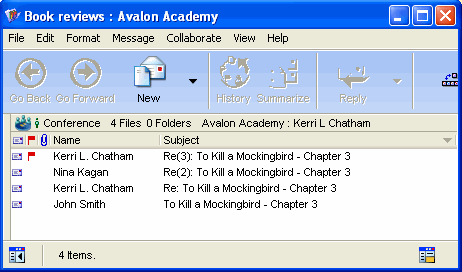
John Smith is an English teacher at Avalon Academy. He wants students to discuss class topics among themselves and give everyone a chance to participate, so he starts an online discussion.
Follow discussion threads
John posts a message in his class conference to start a discussion about the book his students are reading. Over the next couple of days he sees who is contributing to the discussion. He can then grade appropriately on participation.   
8212006_113851_0.png