[ fcp://@fc.onlinehelp.com,%237600229/En/OnlineHelp/Web%20Help/LW2 ]Contents [ fcp://@fc.onlinehelp.com,%237600229/En/OnlineHelp/Web%20Help/LW31 ][Image:81203_43854_21.png][ fcp://@fc.onlinehelp.com,%237600229/En/OnlineHelp/Web%20Help/LW42 ][Image:81203_43840_19.png] [Marker][ fcp://@fc.onlinehelp.com,%237600229/En/OnlineHelp/Web%20Help/LW32#The reading pane ]The reading pane [ fcp://@fc.onlinehelp.com,%237600229/En/OnlineHelp/Web%20Help/LW32#Opening the reading pane ]Opening the reading pane --------------- [Marker]The reading pane When the reading [ fcp://@fc.onlinehelp.com,%237600229/En/OnlineHelp/Definitions/L2018 ]pane is open, it is displayed under or to the right of the main pane. The reading pane displays the contents of any object selected in the main pane. For example, a selected message or document opens in this pane. You can work with objects in the reading pane just as you do when they are opened in the main pane. [ fcp://@fc.onlinehelp.com,%237600229/En/OnlineHelp/Web%20Help/LW32#Top ]Top --------------- [Marker]Opening the reading pane To open the reading pane, click this button: [Image:892006_13851_0.png] This button is only visible if you have the navigation pane open. It [ fcp://@fc.onlinehelp.com,%237600229/En/OnlineHelp/Definitions/L2035 ]toggles through three states. To move the reading pane to the right of the main pane, click this button again. To close the reading pane, click this button a third time. [ fcp://@fc.onlinehelp.com,%237600229/En/OnlineHelp/Web%20Help/LW32#Top ]Top
   
F2020
 
 
Home  •  Help  •  M0  •  Practical Uses for FirstClass  •  101 Uses for FirstClass  •  F2020
81903_22607_2.pngLet students manage themselves

Minimum version:
FirstClass 8.3

Audience:
Teachers

Experience
:  9203_22631_1.png
FirstClass applications used:
            8202006_32855_2.pngCalendars
9203_31709_1.png Summary
Teach your students responsibility by letting them manage themselves. Use a FirstClass group calendar to post important dates, such as homework due dates or test dates. Every student has access to the calendar, so they have no excuse not to be ready for a test or not have their homework completed on time.
9203_31709_1.png Example
John Smith is an English teacher at Avalon Academy. He uses a class calendar to set dates for project milestones, homework assignments, tests, presentations, and field trips. He put the calendar in the class conference so every student can access it.
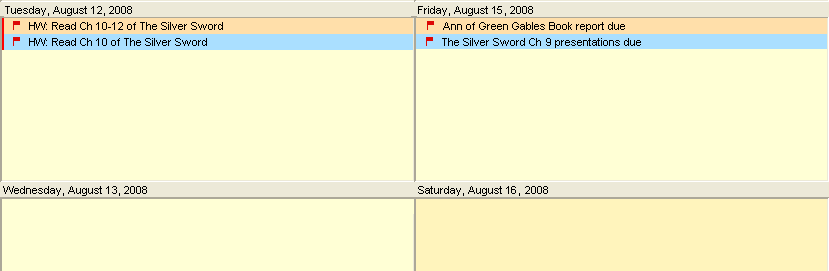
He has a small group of advanced students in his class, so he denotes their homework and other information in orange, and the information for the rest of the class in blue.
This is what the class calendar looks like in Week format.
8202006_32813_1.png
It is the responsibility of each student to check the calendar each day and make sure they are prepared for assignments and field trips.
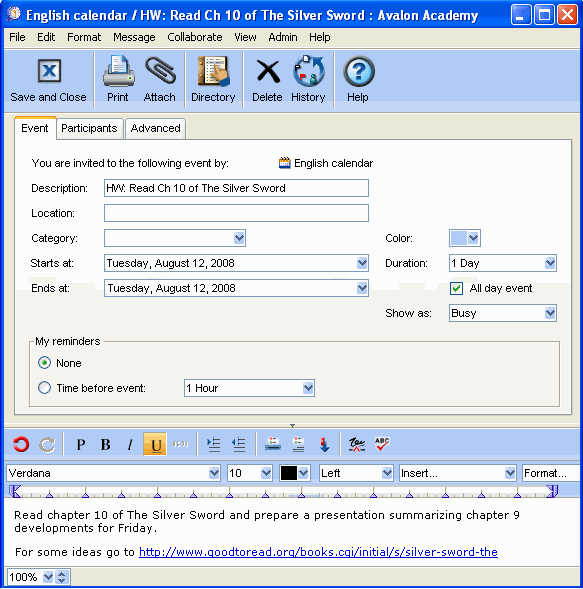
John puts the assignment information directly in the calendar entry. This is a calendar entry. Notice the homework assignment listed at the bottom. There is also a link to a web site that discusses the content further.
8202006_33811_0.png
History
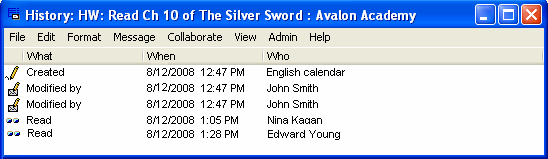
John checks the history of each calendar item to see who has read it. He uses this to see who may be falling behind.
8202006_32409_0.png