[ fcp://@fc.onlinehelp.com,%237600229/En/OnlineHelp/Web%20Help/LW2 ]Contents [ fcp://@fc.onlinehelp.com,%237600229/En/OnlineHelp/Web%20Help/LW31 ][Image:81203_43854_21.png][ fcp://@fc.onlinehelp.com,%237600229/En/OnlineHelp/Web%20Help/LW42 ][Image:81203_43840_19.png] [Marker][ fcp://@fc.onlinehelp.com,%237600229/En/OnlineHelp/Web%20Help/LW32#The reading pane ]The reading pane [ fcp://@fc.onlinehelp.com,%237600229/En/OnlineHelp/Web%20Help/LW32#Opening the reading pane ]Opening the reading pane --------------- [Marker]The reading pane When the reading [ fcp://@fc.onlinehelp.com,%237600229/En/OnlineHelp/Definitions/L2018 ]pane is open, it is displayed under or to the right of the main pane. The reading pane displays the contents of any object selected in the main pane. For example, a selected message or document opens in this pane. You can work with objects in the reading pane just as you do when they are opened in the main pane. [ fcp://@fc.onlinehelp.com,%237600229/En/OnlineHelp/Web%20Help/LW32#Top ]Top --------------- [Marker]Opening the reading pane To open the reading pane, click this button: [Image:892006_13851_0.png] This button is only visible if you have the navigation pane open. It [ fcp://@fc.onlinehelp.com,%237600229/En/OnlineHelp/Definitions/L2035 ]toggles through three states. To move the reading pane to the right of the main pane, click this button again. To close the reading pane, click this button a third time. [ fcp://@fc.onlinehelp.com,%237600229/En/OnlineHelp/Web%20Help/LW32#Top ]Top
   
F2005
 
 
Home  •  Help  •  M0  •  Practical Uses for FirstClass  •  101 Uses for FirstClass  •  F2005
81903_22607_2.pngTrack successes for your review

Minimum version:
FirstClass 8.3

Audience:
Business professionals

Experience
:  9203_22631_1.png
FirstClass applications used:
           9203_24337_3.pngDocuments
9203_31709_1.png Summary
At review time, do you find yourself wracking your brain and sorting through old work to determine what exactly you accomplished in that review period? Are you a manager who has a hard time remembering employees' accomplishments come review time? Use the Documents folder in FirstClass to record your accomplishments or your employees' accomplishments throughout the review period.
The advantage of using FirstClass documents over other options is that the information is centralized -- right in your Documents folder on your Desktop, so you won't lose the information if your computer crashes, and you can easily share it with others by pasting or attaching it into a message, or putting the document(s) in a conference.
9203_31709_1.png Example
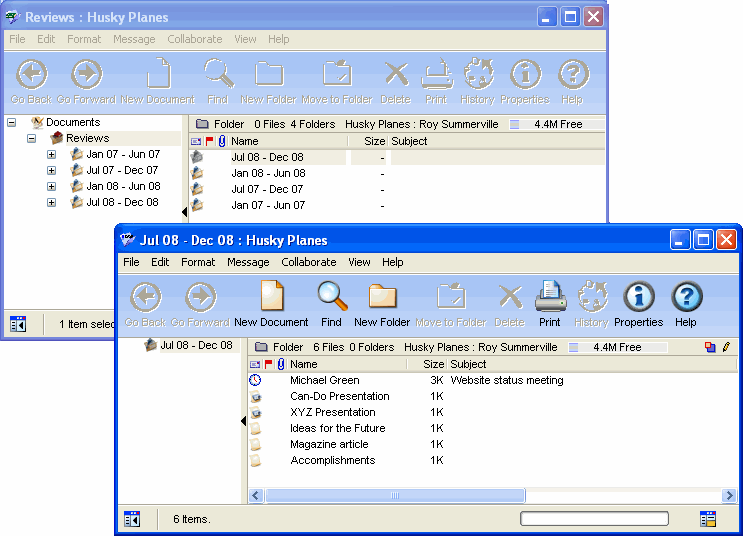
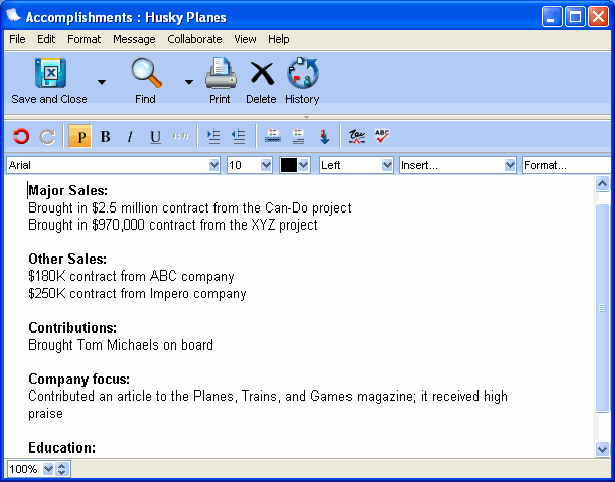
Roy Summerville is a salesperson at Husky Planes. His employer is Michael Green. Michael Green conducts reviews every six months. In order to always be ready for the review, Roy maintains a folder called Review, in his Documents folder. In it, he stores successful presentations he has done, praise he has received through email and voice messages, and maintains a document for each review period that outlines his successes, room for improvement, new ideas, and future plans.
This is the folder he maintains.
842006_90101_0.png
This is the document he is maintaining for this review period.
842006_90112_1.png