[ fcp://@fc.onlinehelp.com,%237600229/En/OnlineHelp/Web%20Help/LW2 ]Contents [ fcp://@fc.onlinehelp.com,%237600229/En/OnlineHelp/Web%20Help/LW31 ][Image:81203_43854_21.png][ fcp://@fc.onlinehelp.com,%237600229/En/OnlineHelp/Web%20Help/LW42 ][Image:81203_43840_19.png] [Marker][ fcp://@fc.onlinehelp.com,%237600229/En/OnlineHelp/Web%20Help/LW32#The reading pane ]The reading pane [ fcp://@fc.onlinehelp.com,%237600229/En/OnlineHelp/Web%20Help/LW32#Opening the reading pane ]Opening the reading pane --------------- [Marker]The reading pane When the reading [ fcp://@fc.onlinehelp.com,%237600229/En/OnlineHelp/Definitions/L2018 ]pane is open, it is displayed under or to the right of the main pane. The reading pane displays the contents of any object selected in the main pane. For example, a selected message or document opens in this pane. You can work with objects in the reading pane just as you do when they are opened in the main pane. [ fcp://@fc.onlinehelp.com,%237600229/En/OnlineHelp/Web%20Help/LW32#Top ]Top --------------- [Marker]Opening the reading pane To open the reading pane, click this button: [Image:892006_13851_0.png] This button is only visible if you have the navigation pane open. It [ fcp://@fc.onlinehelp.com,%237600229/En/OnlineHelp/Definitions/L2035 ]toggles through three states. To move the reading pane to the right of the main pane, click this button again. To close the reading pane, click this button a third time. [ fcp://@fc.onlinehelp.com,%237600229/En/OnlineHelp/Web%20Help/LW32#Top ]Top
   
F2004
 
 
Home  •  Help  •  M0  •  Practical Uses for FirstClass  •  101 Uses for FirstClass  •  F2004
81903_22607_2.pngSend department memos

Minimum version:
FirstClass 8.3

Audience:
Business professionals        

Experience
: 9203_22654_2.png
FirstClass applications used:
        9203_24337_3.pngConferencing
9203_31709_1.png Summary
Looking for a way to send electronic memos that appear to come from your department rather than you? It's easy to do using FirstClass. With the click of a button, you can generate a department memo to anybody in your company.
9203_31709_1.png Example
Heather Roberts heads the Payroll department at Husky Planes. Each department at Husky Planes has their own conference and Heather manages the one for the Payroll department.
When she or her assistant need to send a memo from the Payroll department, they do the following:
1  They open the Payroll Department conference.
81203_42521_14.png Note
The conference must be published in the Directory to create messages appearing to originate from it. If you have permission to change conference permissions, uncheck Do not publish in Directory. Otherwise, contact the conference controller to do so.
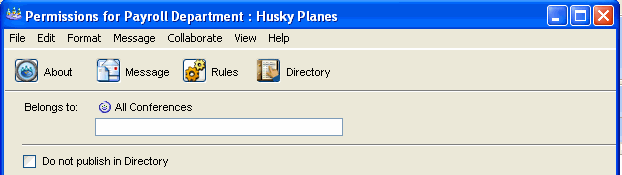
2  They select Collaborate > Permissions.
3  On the Permissions form, they click the Message button.
872006_110943_5.png
A new message appears in their Mailbox listing the Payroll Department as the sender.
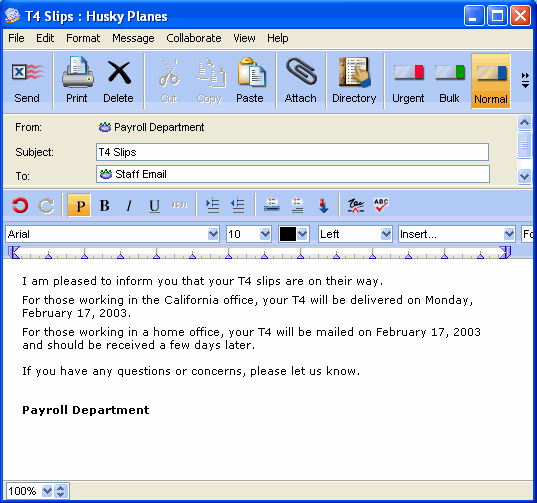
4  They address the message to the Staff Email conference.
This is a message Heather created.
872006_110217_3.png
If Heather or her assistant wants the other to contribute to a memo, they drag the message from their Mailbox to the Payroll Department conference. Once a message is moved into the conference, both Heather and her assistant can edit it.
9203_31709_1.png Variations
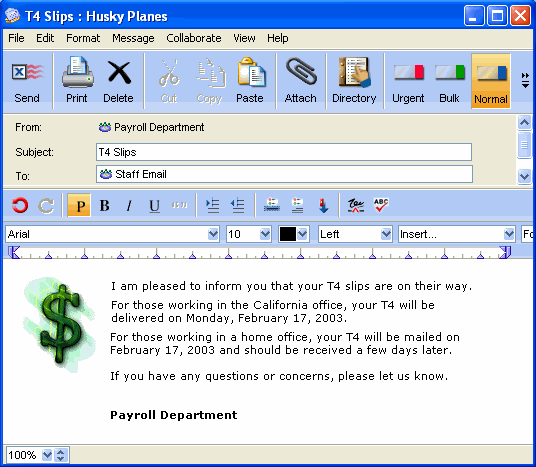
Heather can also add a background to the message to give it a custom look.
872006_110459_4.png