[ fcp://@fc.onlinehelp.com,%237600229/En/OnlineHelp/Web%20Help/LW2 ]Contents [ fcp://@fc.onlinehelp.com,%237600229/En/OnlineHelp/Web%20Help/LW31 ][Image:81203_43854_21.png][ fcp://@fc.onlinehelp.com,%237600229/En/OnlineHelp/Web%20Help/LW42 ][Image:81203_43840_19.png] [Marker][ fcp://@fc.onlinehelp.com,%237600229/En/OnlineHelp/Web%20Help/LW32#The reading pane ]The reading pane [ fcp://@fc.onlinehelp.com,%237600229/En/OnlineHelp/Web%20Help/LW32#Opening the reading pane ]Opening the reading pane --------------- [Marker]The reading pane When the reading [ fcp://@fc.onlinehelp.com,%237600229/En/OnlineHelp/Definitions/L2018 ]pane is open, it is displayed under or to the right of the main pane. The reading pane displays the contents of any object selected in the main pane. For example, a selected message or document opens in this pane. You can work with objects in the reading pane just as you do when they are opened in the main pane. [ fcp://@fc.onlinehelp.com,%237600229/En/OnlineHelp/Web%20Help/LW32#Top ]Top --------------- [Marker]Opening the reading pane To open the reading pane, click this button: [Image:892006_13851_0.png] This button is only visible if you have the navigation pane open. It [ fcp://@fc.onlinehelp.com,%237600229/En/OnlineHelp/Definitions/L2035 ]toggles through three states. To move the reading pane to the right of the main pane, click this button again. To close the reading pane, click this button a third time. [ fcp://@fc.onlinehelp.com,%237600229/En/OnlineHelp/Web%20Help/LW32#Top ]Top
   
F3706
 
 
Home  •  Help  •  M0  •  Using FirstClass ED  •  FirstClass ED for Students  •  FOV2-0000F40B  •  F3706
41204_42505_0.pngParticipating in discussions
Task list


9203_31904_3.pngTaking class discussions outside the classroom
Class discussions don't have to stop when the bell rings. The Discussions area of FirstClass ED lets you communicate with classmates on class topics in your own time. Here are some scenarios where you may use the Discussions area:
•       The teacher poses a question about the lesson for discussion.
•       You don't understand something in the lesson, so you post a question about it to your classmates.
•       You found a great web site related to a class topic that you want to share.
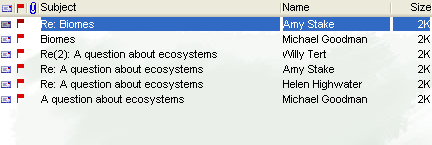
This example shows a Discussion area where multiple discussions are occurring. Each discussion is kept separate by threading.
662005_114709_0.png
Learn more about threading.
9203_31904_3.pngA chat room can be a learning tool
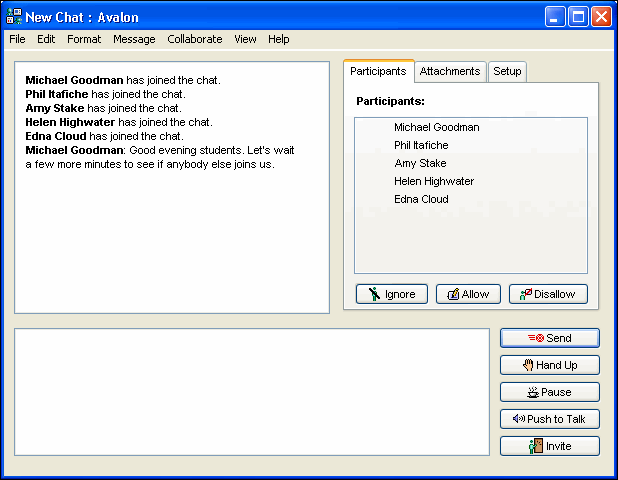
A chat room is an ideal forum for you to ask questions of the teacher and get extra help. Your teacher may set "chat hours" so you can go online at that time and ask questions. Further, your teacher may use the class chat room to host simulations and role-playing events, or present transcript-based assignments.
7202005_45659_2.png
If the teacher uses a chat room, you can access it in the Discussions area.
about chat rooms.
Starting a discussion
To start a new discussion:
1 Open the Discussions area.
3 Populate the message and click Send.
Replying to a discussion
To reply to a discussion in progress:
1 Highlight the message you want to reply to.
2 Click Reply.
3 Add content and click Send.
You can also use standard messaging features like Reply with quotes. For more information about replying to messages, click here.