[ fcp://@fc.onlinehelp.com,%237600229/En/OnlineHelp/Web%20Help/LW2 ]Contents [ fcp://@fc.onlinehelp.com,%237600229/En/OnlineHelp/Web%20Help/LW31 ][Image:81203_43854_21.png][ fcp://@fc.onlinehelp.com,%237600229/En/OnlineHelp/Web%20Help/LW42 ][Image:81203_43840_19.png] [Marker][ fcp://@fc.onlinehelp.com,%237600229/En/OnlineHelp/Web%20Help/LW32#The reading pane ]The reading pane [ fcp://@fc.onlinehelp.com,%237600229/En/OnlineHelp/Web%20Help/LW32#Opening the reading pane ]Opening the reading pane --------------- [Marker]The reading pane When the reading [ fcp://@fc.onlinehelp.com,%237600229/En/OnlineHelp/Definitions/L2018 ]pane is open, it is displayed under or to the right of the main pane. The reading pane displays the contents of any object selected in the main pane. For example, a selected message or document opens in this pane. You can work with objects in the reading pane just as you do when they are opened in the main pane. [ fcp://@fc.onlinehelp.com,%237600229/En/OnlineHelp/Web%20Help/LW32#Top ]Top --------------- [Marker]Opening the reading pane To open the reading pane, click this button: [Image:892006_13851_0.png] This button is only visible if you have the navigation pane open. It [ fcp://@fc.onlinehelp.com,%237600229/En/OnlineHelp/Definitions/L2035 ]toggles through three states. To move the reading pane to the right of the main pane, click this button again. To close the reading pane, click this button a third time. [ fcp://@fc.onlinehelp.com,%237600229/En/OnlineHelp/Web%20Help/LW32#Top ]Top
   
F3205
 
 
Home  •  Help  •  FOV2-0000F3E1  •  FAV2-0000F404  •  FOV2-0000F405  •  The Teacher's Classroom  •  F3205
41204_42505_0.pngScheduling
Task list
 Traditional scheduling
In a traditional class environment, you tell students when assignments and project milestones are due, what is for homework, and when test or special events are scheduled. Students may write the dates in a personal agenda, or in their notebooks. Many times, parents are required to sign the book to acknowledge that they are aware of the assignments.
9203_31904_3.png FirstClass ED is a scheduler
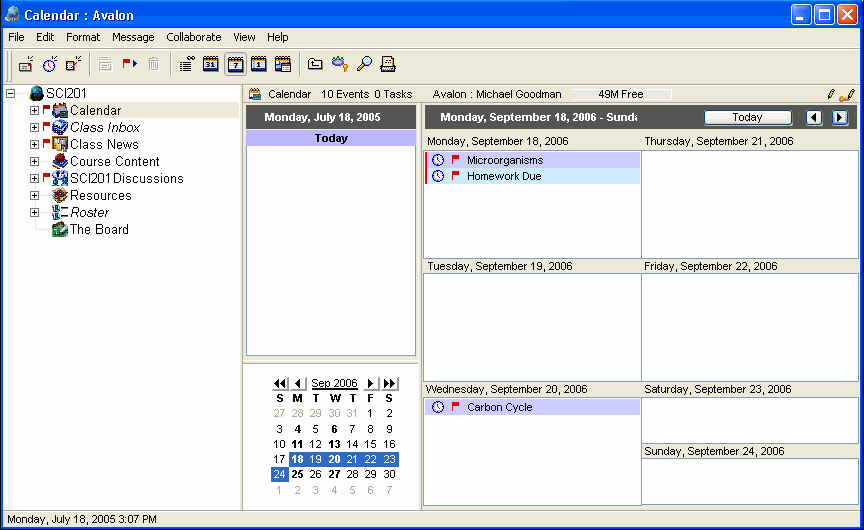
The class calendar in FirstClass ED lets you record homework due dates and dates for tests and special events. This forces students to take responsibility for their own participation in courses. This rules out concerns that they couldn't find their agenda, they forgot to bring it home, or they forgot to record the due date, because all important information is always online whenever they log into their accounts.  
Furthermore, the calendar lets you use color to differentiate between entries, create repeating entries, and add notes and attachments. If parents want to know what their child has for homework, or what is coming up, they can log into their child's account and look at the class calendar.
This example shows a class calendar the teacher uses regularly.
1252005_24618_0.png
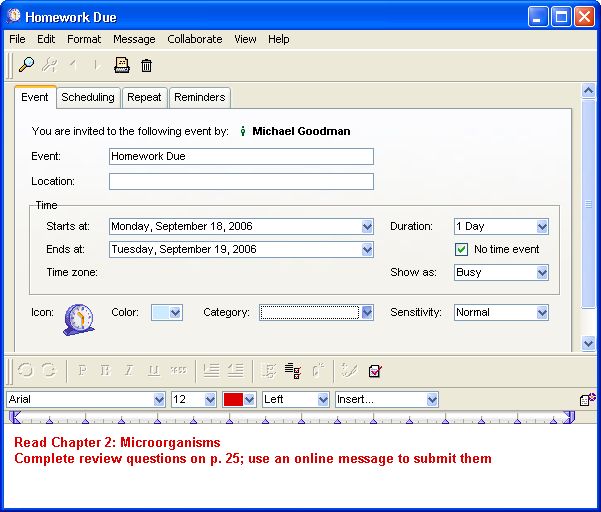
Here is a homework entry from the same calendar.
592005_52711_2.jpg
9203_31904_3.png How to
The class calendar in FirstClass ED is a FirstClass group calendar and is used the same way as other standard FirstClass calendars.
Learn more about FirstClass calendars.