Evaluating student work Evaluating student workTask list Traditional student evaluations
In a traditional class environment, students print and submit their assignments in hard copy. You drag the assignments home, grade them, record marks in your roster, and then drag the assignments back to school and hand them out, only to have the students toss them or drag them home again.
After face-to-face teaching, marking tests and assignments take up the most hours in your day. This doesn't even include the extra time you spend correcting problems if you enter a grade in the wrong field or lose an assignment as you cart them around. This traditional method of grading student work is cumbersome and wastes time and materials.
Aside from directly grading work there are a number of ways to get an overall assessment of student work. You may use a gradebook to examine patterns and get an overall assessment, or you may look at samples of student work. One method of evaluation that is becoming increasingly popular is rubric charts.
Rubric charts
Rubric charts have gained popularity over the years as an effective means of evaluating student work. The rubric is an authentic assessment tool which is particularly useful in assessing criteria which are complex and subjective. If you use rubrics, you may
• provide a rubric chart in advance of an assignment so students are aware of the requirements, and then evaluate work based on this chart
• spend time in class reviewing what is and is not acceptable work based on the various levels of the rubric chart
• ask students to evaluate each others' work based on the expectations outlined in the rubric chart
• let students assist in the design process as they become more familiar with rubrics.
This involvement empowers them and, as a result, their learning becomes more focused and self-directed.
 FirstClass ED is a student assessor FirstClass ED is a student assessorFirstClass ED simplifies traditional evaluation tasks by automating them. With the click of a button, you can
• distribute assignments to students by making them available in Course Content
• mark assignments online as they are received in your Class Inbox, and have that mark automatically appear in the class roster
• return assignments to students with feedback directly in the assignments.
Also with the click of a button, students can
• start assignments that are posted online
• see when assignments are due in the calendar
• submit assignments when finished
• receive marked assignments in their Mailbox.
Evaluation tools
FirstClass ED also provides tools to help you evaluate student work. These include
• a class roster to provide an assessment of students' overall performance
• a student portfolio to showcase samples of student work.
Receiving assignments in your Class Inbox
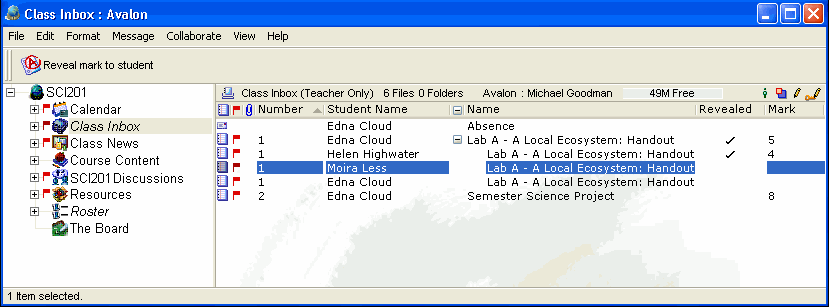
When students submit an assignment in FirstClass ED, the assignment shows up in your Class Inbox. Only you have access to your Class Inbox. This container is not visible to students. The Class Inbox may also contain messages from students who are on the roster.
In this example, a Science teacher has received a message and some assignments from some of his students.
Assigning marks and returning assignments
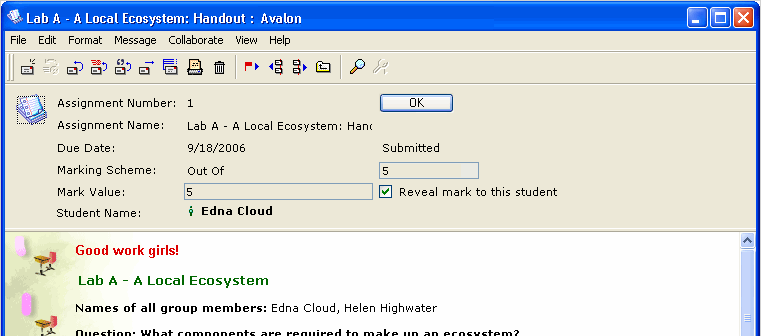
When you open an assignment in the Class Inbox, you will see an evaluation field called "Mark". When you enter a mark, it is automatically recorded on the student roster. When you select Reveal Mark to student, the mark automatically appears in the "Mark" field of the assignment in the student's Mailbox.
If an assignment was not received electronically, you can still enter a mark directly into the student roster.
To update the roster automatically and inform the student of his mark:
1 Open the Class Inbox.
2 Open the submitted assignment.
3 Enter the mark.
4 Add comments in the body of the assignment, if desired.
5 Select Reveal Mark to student.
6 Click OK.
 To inform a group of students of their marks: 1 Use the Shift and Control keys to select the range of assignments in the Class Inbox.
2 Click Reveal Mark to Student.
To update the roster manually, follow the directions here.
Using portfolios to evaluate student work
FirstClass ED accommodates student portfolios where students can house samples of their work. You can request access to this area for each student at intervals throughout the school year to see how students are progressing and to show parents how their children are doing. To view student portfolios, ask students to either move their My Portfolio folders into their My Shared Documents area, or create an alias in My Shared Documents to their portfolios.
To access student portfolios using aliases, have students follow this procedure:
1 Select My Portfolio.
2 Right-click and choose Add to Desktop.
3 Drag the new My Portfolio into My Shared Documents.
 Note NoteIf you do not have a My Shared Documents folder on your Desktop, choose File > Open > My Shared Documents. The folder will be automatically added to your Desktop.
about student portfolios.
Using graphic organizers
Graphic organizers are powerful tools that can be used to both enhance and create a foundation for learning. They are a pictorial or graphical way to organize information for understanding, remembering or writing about. FirstClass provides online templates for some of these organizers to aid you in teaching.
You can use our online templates to create a graphic organizer, and then include it in the lesson or assignment.
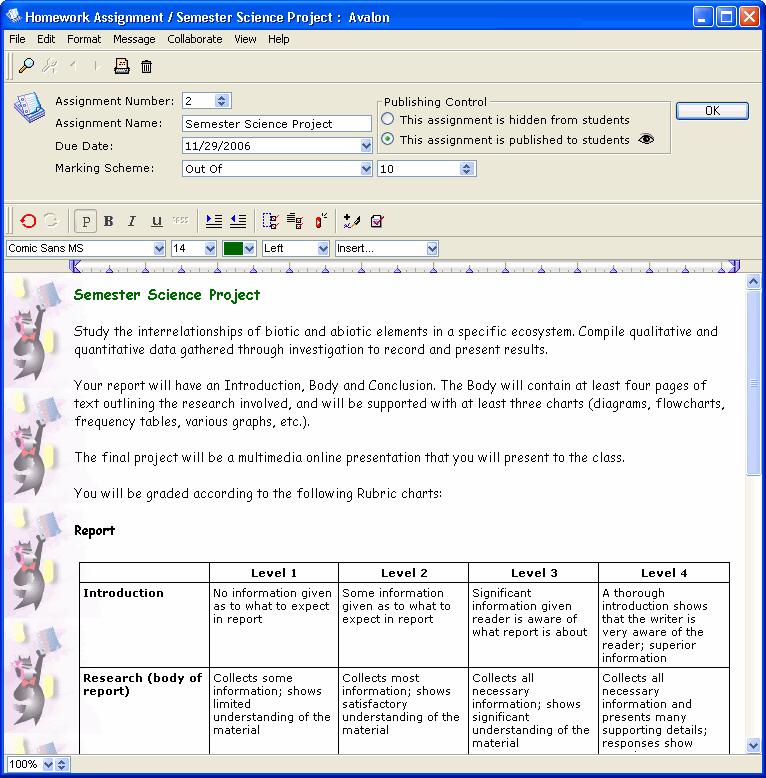
If you populate and add a rubric chart to each assignment, students will know exactly what is expected for each assignment. Once the graphic organizer has been added to Course Content, it will be available when you or another teacher are ready to teach the lesson again.
In this example, a teacher has added a rubric chart to the instructions in his Science project assignment.
 | ||