 Enforce online etiquette Enforce online etiquetteMinimum version: FirstClass 8.3 Audience: Administrators Experience:  FirstClass applications used:
 Mail rules/Rules and Resources folder Mail rules/Rules and Resources folder Summary SummaryLooking for a way to make sure messages meet the standards you want? Use FirstClass mail rules to filter messages for acceptability. Filter messages based on size, attachment type, and so on.
ExampleHusky Planes has a News conference where staff posts information for everyone's benefit. The administrator decides to make his job easier by automating management of this conference. He creates a set of four advanced mail rules to filter messages and reject those which lack a subject or contain an attachment that is platform-specific.
This is the list of rules in the order they are executed.
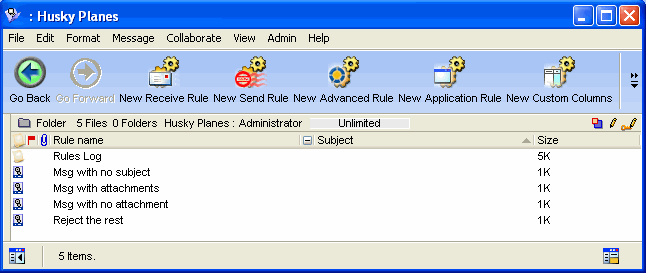 To create this set of Rules, the administrator does the following:
1 He selects the News conference icon.
2 He clicks Collaborate > Rules to bring up the Mail Rules form.
3 He clicks on the New Advanced Rule button.
Messages with no subject
He creates the first rule, "Msg with no subject". This rule rejects any message without a subject, generates an automatic reply, and then stops mail rules:
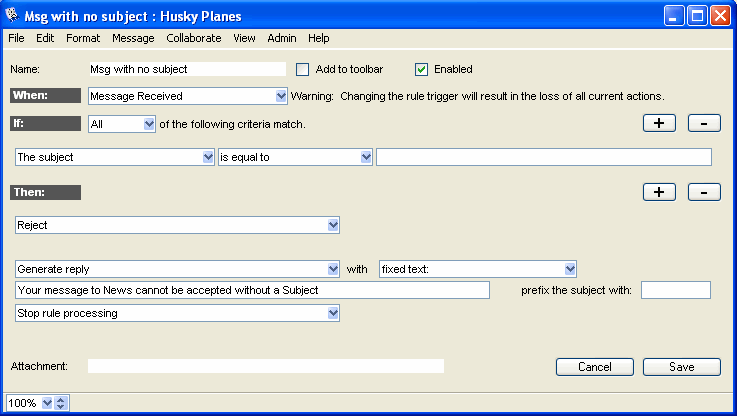 Messages with attachments
He creates the second rule, "Msg with attachments". This rule accepts certain cross-platform attachments, then stops mail rules:
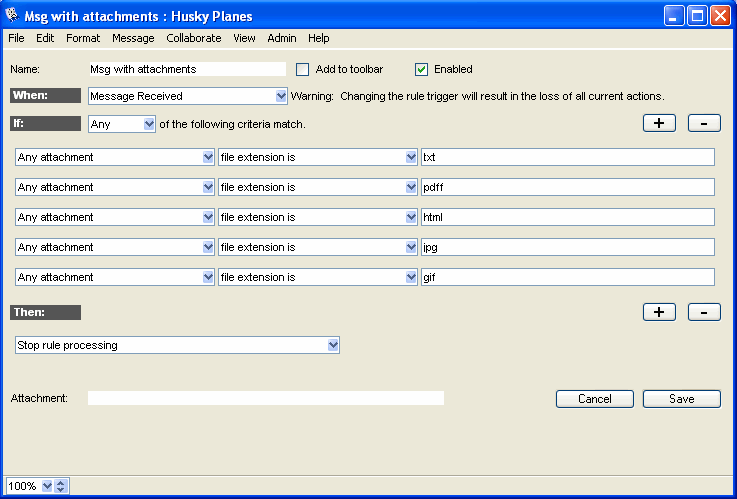 Messages with no attachment
He creates the third rule, "Msg with no attachment". This rule accepts any message without an attachment, then stops mail rules:
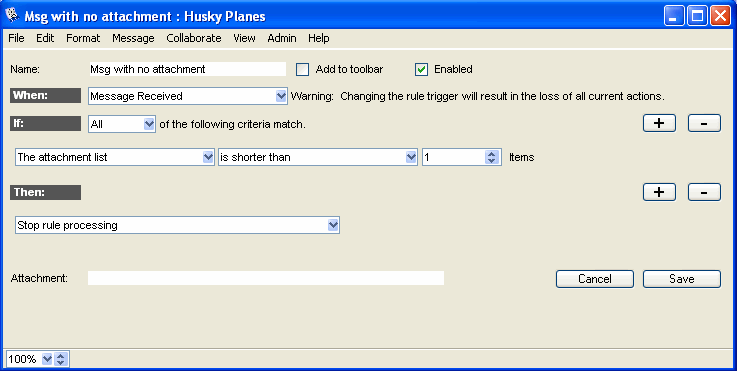 All other messages
Messages that met any of the above If conditions have already stopped rule processing, so all other incoming messages will fall into the All category.
He creates the last rule, "Reject the rest". This rule rejects each of these messages, forwards a copy to the network administrator, and generates a reply to the sender: 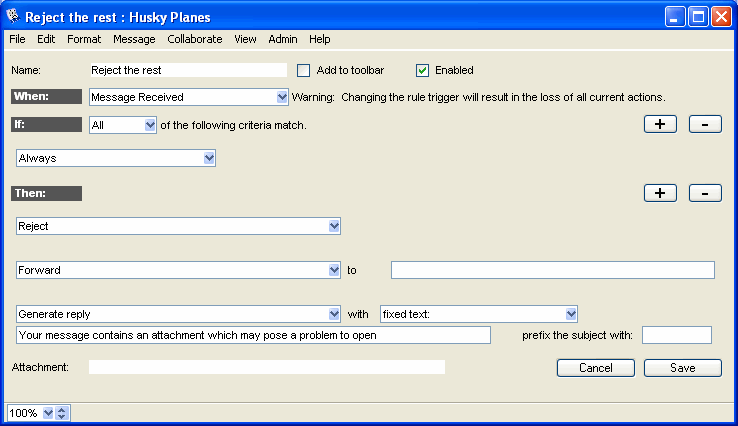 Variations Variations• The administrator could use a mail rule to filter messages containing unacceptable language.
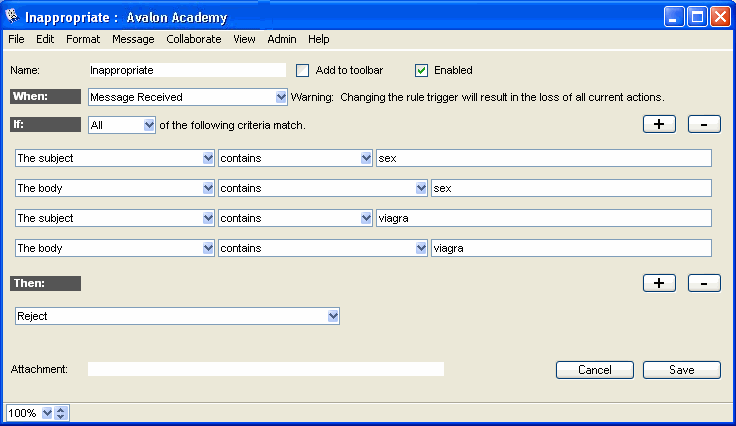
This is a sample mail rule that handles unacceptable language.
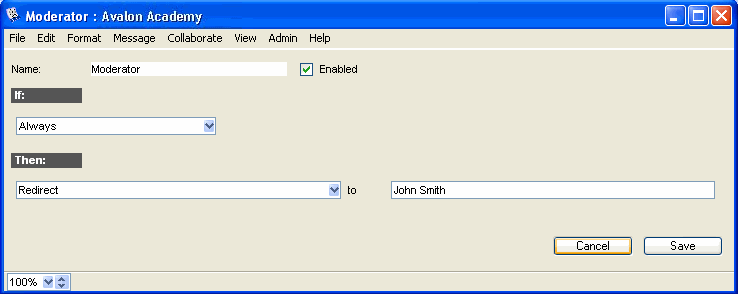
 • He could also use a mail rule to automatically send messages to a conference Moderator first.
This is a sample mail rule that forwards all messages to a moderator.
 | ||