[ fcp://@fc.onlinehelp.com,%237600229/En/OnlineHelp/Web%20Help/LW2 ]Contents [ fcp://@fc.onlinehelp.com,%237600229/En/OnlineHelp/Web%20Help/LW31 ][Image:81203_43854_21.png][ fcp://@fc.onlinehelp.com,%237600229/En/OnlineHelp/Web%20Help/LW42 ][Image:81203_43840_19.png] [Marker][ fcp://@fc.onlinehelp.com,%237600229/En/OnlineHelp/Web%20Help/LW32#The reading pane ]The reading pane [ fcp://@fc.onlinehelp.com,%237600229/En/OnlineHelp/Web%20Help/LW32#Opening the reading pane ]Opening the reading pane --------------- [Marker]The reading pane When the reading [ fcp://@fc.onlinehelp.com,%237600229/En/OnlineHelp/Definitions/L2018 ]pane is open, it is displayed under or to the right of the main pane. The reading pane displays the contents of any object selected in the main pane. For example, a selected message or document opens in this pane. You can work with objects in the reading pane just as you do when they are opened in the main pane. [ fcp://@fc.onlinehelp.com,%237600229/En/OnlineHelp/Web%20Help/LW32#Top ]Top --------------- [Marker]Opening the reading pane To open the reading pane, click this button: [Image:892006_13851_0.png] This button is only visible if you have the navigation pane open. It [ fcp://@fc.onlinehelp.com,%237600229/En/OnlineHelp/Definitions/L2035 ]toggles through three states. To move the reading pane to the right of the main pane, click this button again. To close the reading pane, click this button a third time. [ fcp://@fc.onlinehelp.com,%237600229/En/OnlineHelp/Web%20Help/LW32#Top ]Top
   
F2054
 
 
Home  •  Help  •  W0  •  Practical Uses for FirstClass  •  101 Uses for FirstClass  •  F2054
81903_22607_2.pngShare voice messages with others

Minimum version:
current Voice Services release

Audience:
All users

Experience
:9203_22631_1.png
FirstClass Services used:
            9203_24337_3.pngUnified Communications
FirstClass applications used:
9203_31709_1.png Summary
Would you like to share your voice messages with fellow employees? Use FirstClass Unified Communications to forward voice messages to a staff conference for others to hear. You can even add text to the body of the message.
9203_31709_1.png Example
Michael Green is the VP of Sales and Marketing at Husky Planes. He receives numerous calls a day from customers enquiring about their accounts. Many of these calls are better answered by his staff.
If Michael answers the call, he directs the call to the appropriate Sales Representative. If he receives a voice message, he does the following:
1 He logs into his FirstClass account.
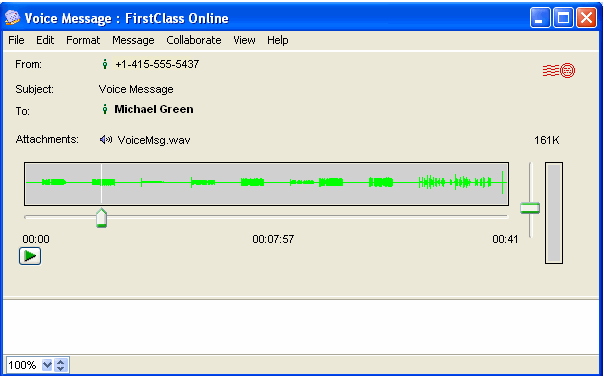
2 He opens his Mailbox and listens to the voice message.
8102006_125542_2.png
 81203_42521_14.png       Note
Voice messages opened using the FirstClass Mailbox contain .wav file attachments that play automatically the first time a message is opened.
You can play, stop or resume play of a message by clicking the Start/Stop button.
8102006_125608_3.png
3 He chooses Message > Forward from the menu and addresses the message to the Account Inquiries conference.
4 He adds desired comments in the message body.
5 He sends the message.
This way, Michael can focus his time on more urgent tasks, and the customer still receives attention.