[ fcp://@fc.onlinehelp.com,%237600229/En/OnlineHelp/Web%20Help/LW2 ]Contents [ fcp://@fc.onlinehelp.com,%237600229/En/OnlineHelp/Web%20Help/LW31 ][Image:81203_43854_21.png][ fcp://@fc.onlinehelp.com,%237600229/En/OnlineHelp/Web%20Help/LW42 ][Image:81203_43840_19.png] [Marker][ fcp://@fc.onlinehelp.com,%237600229/En/OnlineHelp/Web%20Help/LW32#The reading pane ]The reading pane [ fcp://@fc.onlinehelp.com,%237600229/En/OnlineHelp/Web%20Help/LW32#Opening the reading pane ]Opening the reading pane --------------- [Marker]The reading pane When the reading [ fcp://@fc.onlinehelp.com,%237600229/En/OnlineHelp/Definitions/L2018 ]pane is open, it is displayed under or to the right of the main pane. The reading pane displays the contents of any object selected in the main pane. For example, a selected message or document opens in this pane. You can work with objects in the reading pane just as you do when they are opened in the main pane. [ fcp://@fc.onlinehelp.com,%237600229/En/OnlineHelp/Web%20Help/LW32#Top ]Top --------------- [Marker]Opening the reading pane To open the reading pane, click this button: [Image:892006_13851_0.png] This button is only visible if you have the navigation pane open. It [ fcp://@fc.onlinehelp.com,%237600229/En/OnlineHelp/Definitions/L2035 ]toggles through three states. To move the reading pane to the right of the main pane, click this button again. To close the reading pane, click this button a third time. [ fcp://@fc.onlinehelp.com,%237600229/En/OnlineHelp/Web%20Help/LW32#Top ]Top
   
F2041
 
 
Home  •  Help  •  W0  •  Practical Uses for FirstClass  •  101 Uses for FirstClass  •  F2041
12132005_70012_0.pngCreate student portfolios

Minimum version:
FirstClass 8.3

Audience:
Teachers

Experience
: 12132005_65528_1.png

FirstClass applications used:

        9203_24337_3.png
Conferencing
9203_31709_1.png Summary
Want an easy way for students to showcase their best work? Create a personal FirstClass conference for each student to store or showcase their accomplishments throughout their school year.
9203_31709_1.png Example
John Smith, an English teacher at Avalon Academy, wants his students to develop individual portfolios to showcase their accomplishments over the school year.
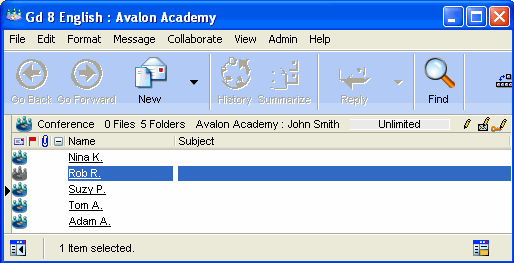
He creates an individual conference for each of his grade 8 English students inside the Gd 8 English conference.
8212006_12941_3.png
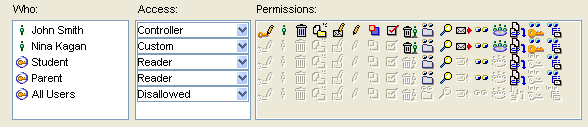
John makes himself the conference controller and sets the custom conference permissions for the students. He gives each student Contributor status, plus adds the Create items, Edit items, and Create subconferences permissions. Students can create, change, and delete new folders, subfolders, and documents within their individual conference.
In addition, he gives all students and parents Reader status so students can view each other's accomplishments and parents can see their children's work.
These are the permissions he set for Nina Kagan's conference.
12132005_63338_0.png
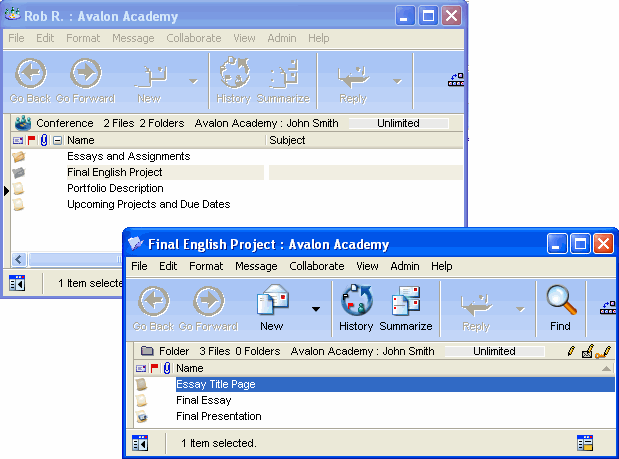
This is Rob R.'s portfolio.
8212006_12730_2.png