 Hold a parent information session Hold a parent information session Minimum version: FirstClass 8.3 Audience: Teachers Experience:  FirstClass applications used:
 Summary SummaryLooking for a simple way to talk to parents on a regular basis? Use the chat room feature of FirstClass to chat live with parents regularly during the term. After each meeting, save the session transcript and post it for the benefit of parents who can't participate, so you don't have to worry about recording minutes.
Before each session, you can post general information such as an outline of what children are learning. Parents can also post questions for you to answer. You control the date, the place, and the content.
Here is a comparison showing the conventional way of meeting with parents and how you could use FirstClass to speak with them.
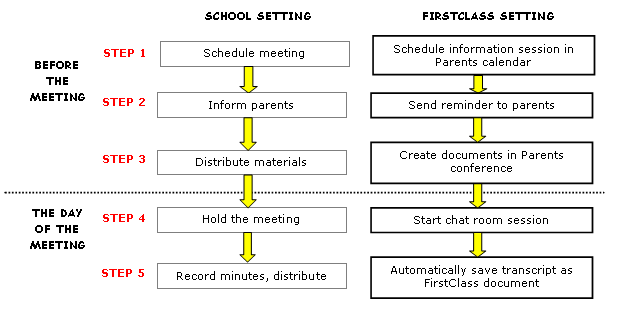 Example ExampleJohn Smith teaches Grade 12 English at Avalon Academy. To maintain communication with parents, he hosts an online exchange with them every third week. Parents unable to participate can read a copy of the session transcript online. Prior to each chat room session, John posts a progress report so parents know what their children are currently studying.
At the beginning of the school year, John creates an environment for Parents within his English conference.
This is the Parents conference he created.
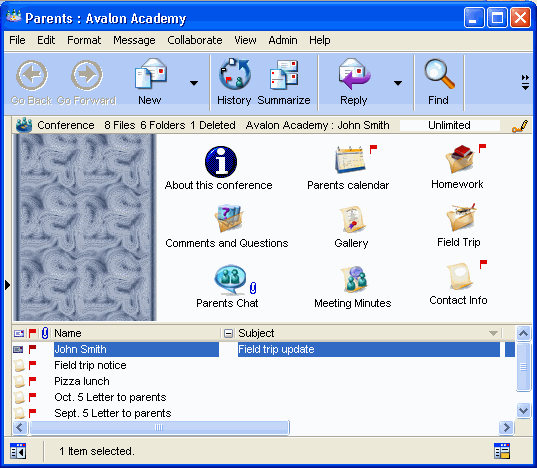 This Parents conference contains:
• About this Conference: a document explaining the purpose of the Parents conference
• Parents Chat: a chat room that the administrator created for him
• Parents calendar: a calendar to record important dates such as meetings, field trips, and tests
• Comments and Questions: a conference for parents to post questions for John
• Meeting Minutes: a folder for filing chat room transcripts
• a Field Trip conference to manage field trip information
• a Meeting Minutes conference to post the minutes of parent information sessions that John holds
• a Gallery conference to display student work.
Letters and notes for parents are placed in the lower pane of the main window.
BEFORE THE MEETING
STEP 1: Schedule parents meeting
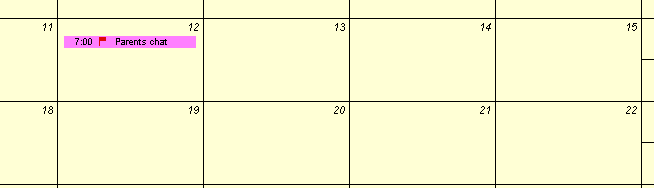
FirstClass lets John notify parents of meetings and other important dates by posting them to a group calendar. This way parents always know when the next chat room session (meeting) will be and can make the necessary arrangements to be available. John schedules the session in the Parents calendar.
This is a month view of the Parents calendar where he scheduled the meeting.
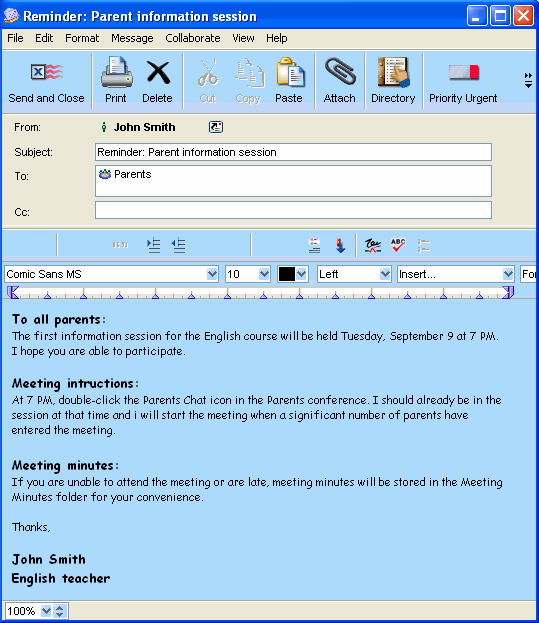
 STEP 2: Invite parents John reminds parents of the upcoming meeting by sending an email to the Parents mailing list.
This is the reminder he sent.
 STEP 3: Distribute materials
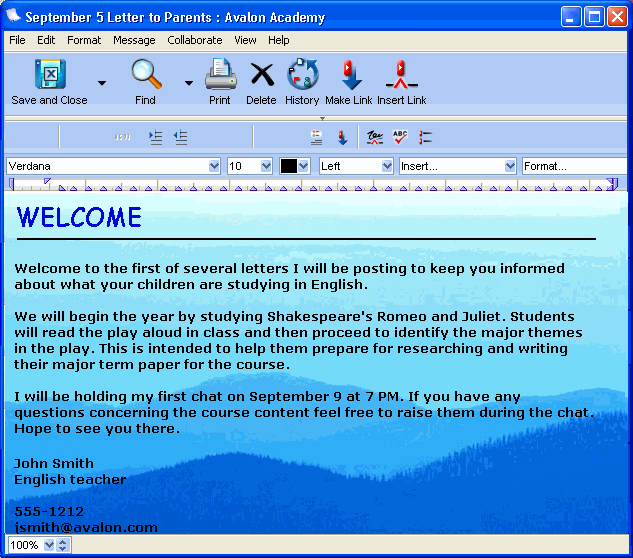
A week before the meeting, John posts a letter to parents in the bottom pane outlining what students are covering and asking for questions from parents as a basis for discussion.
This is document he created as a letter to parents.
 THE DAY OF THE MEETING STEP 4: Hold the meeting
John conducts the meeting using the chat room. At the scheduled time, parents simply open the chat room and start participating.
This is the chat room session that John led.
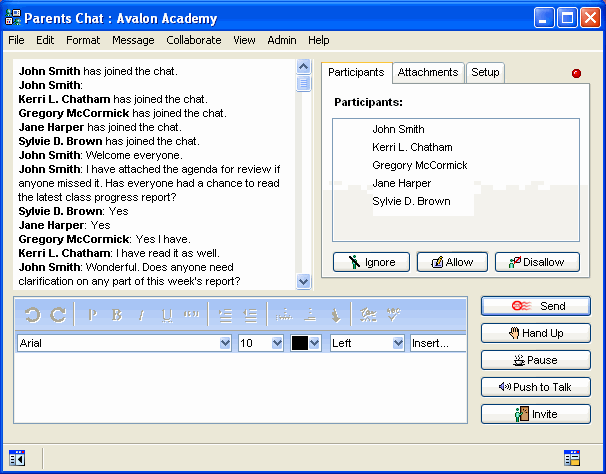 STEP 5: Record minutes After the meeting, John uses the mouse to select the transcript in the transcript pane, and then copies it into a FirstClass document. He then reviews the transcript and puts it in the Meeting Minutes folder.
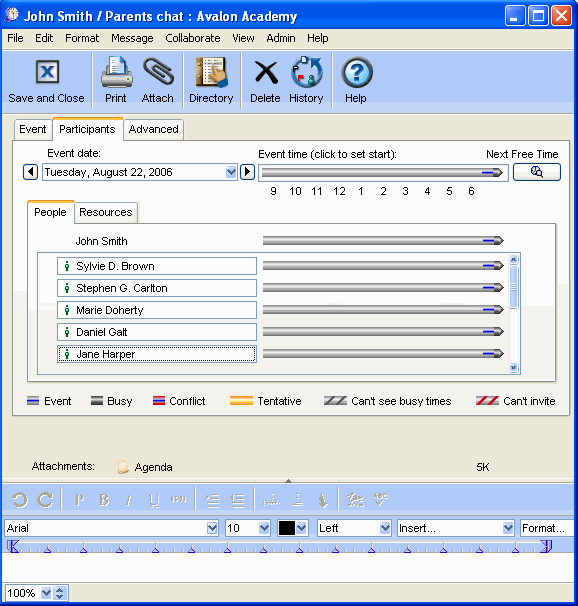
VariationInstead of sending a reminder email to each parent, John can enter parents names on the Scheduling tab so that the meeting appears in their personal calendars. He can also schedule an automatic Reminder using the Event tab.
This is the Participants > People tab where he invites parents.
 If John wants to include a file for parents to look at during the meeting, he can attach it to the calendar event or he can go to the Attachments tab in the Chat room and add it. 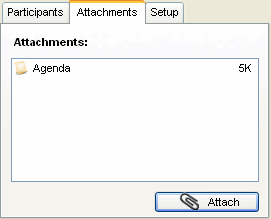 | ||
