[Image:81903_22607_2.png]Hold a parent information session Minimum version: FirstClass 8.3 Audience: Teachers Experience: [Image:9203_22654_2.png] FirstClass applications used: [Image:9203_24337_3.png][ fcp://@fc.onlinehelp.com,%237600229/En/OnlineHelp/Client Help/Calendars ]Calendars [Image:9203_24337_3.png][ fcp://@fc.onlinehelp.com,%237600229/En/OnlineHelp/Client Help/Conferencing ]Conferencing [Image:9203_24337_3.png][ fcp://@fc.onlinehelp.com,%237600229/En/OnlineHelp/Client Help/Instant Messaging ]Instant messaging/chat room [Image:9203_31709_1.png] Summary Looking for a simple way to talk to parents on a regular basis? Use the chat room feature of FirstClass to chat live with parents regularly during the term. After each meeting, save the session transcript and post it for the benefit of parents who can't participate, so you don't have to worry about recording minutes. Before each session, you can post general information such as an outline of what children are learning. Parents can also post questions for you to answer. You control the date, the place, and the content. Here is a comparison showing the conventional way of meeting with parents and how you could use FirstClass to speak with them. [Image:12142005_11738_0.png] [Image:9203_31709_1.png] Example John Smith teaches Grade 12 English at Avalon Academy. To maintain communication with parents, he hosts an online exchange with them every third week. Parents unable to participate can read a copy of the session transcript online. Prior to each chat room session, John posts a progress report so parents know what their children are currently studying. At the beginning of the school year, John creates an environment for Parents within his English conference. This is the Parents conference he created. [Image:9122006_84224_0.png] This Parents conference contains: • About this Conference: a document explaining the purpose of the Parents conference • Parents Chat: a chat room that the administrator created for him • Parents calendar: a calendar to record important dates such as meetings, field trips, and tests • Comments and Questions: a conference for parents to post questions for John • Meeting Minutes: a folder for filing chat room transcripts • a Field Trip conference to manage field trip information • a Meeting Minutes conference to post the minutes of parent information sessions that John holds • a Gallery conference to display student work. Letters and notes for parents are placed in the lower pane of the main window. BEFORE THE MEETING STEP 1: Schedule parents meeting FirstClass lets John notify parents of meetings and other important dates by posting them to a group calendar. This way parents always know when the next chat room session (meeting) will be and can make the necessary arrangements to be available. John schedules the session in the Parents calendar. This is a month view of the Parents calendar where he scheduled the meeting. [Image:8212006_101318_0.png] STEP 2: Invite parents John reminds parents of the upcoming meeting by sending an email to the Parents mailing list. This is the reminder he sent. [Image:8212006_103149_2.png] STEP 3: Distribute materials A week before the meeting, John posts a letter to parents in the bottom pane outlining what students are covering and asking for questions from parents as a basis for discussion. This is document he created as a letter to parents. [Image:8212006_105557_3.png] THE DAY OF THE MEETING STEP 4: Hold the meeting John conducts the meeting using the chat room. At the scheduled time, parents simply open the chat room and start participating. This is the chat room session that John led. [Image:8212006_110501_5.png] STEP 5: Record minutes After the meeting, John uses the mouse to select the transcript in the transcript pane, and then copies it into a FirstClass document. He then reviews the transcript and puts it in the Meeting Minutes folder. [Image:9203_31709_1.png] Variation Instead of sending a reminder email to each parent, John can enter parents names on the Scheduling tab so that the meeting appears in their personal calendars. He can also schedule an automatic Reminder using the Event tab. This is the Participants > People tab where he invites parents. [Image:8212006_111426_6.png] If John wants to include a file for parents to look at during the meeting, he can attach it to the calendar event or he can go to the Attachments tab in the Chat room and add it. [Image:8212006_111730_8.png]
   
F2034
 
 
Home  •  Help  •  W0  •  Practical Uses for FirstClass  •  101 Uses for FirstClass  •  F2034
81903_22607_2.pngMa nage graphics in FirstClass

Minimum version:
FirstClass 8.3

Audience:
All users     

Experience
:  9203_22654_2.png
Features applications used:
          9203_24337_3.pngConferencing
           9203_24337_3.pngMail rules
9203_31709_1.png Summary
Would you like to make your conferences, messages, and documents look more interesting and attractive? Use your favorite images as conference backgrounds by placing them in the Rules and Resources folder of a conference. Use the Format Background feature to customize the appearance of your messages and documents.
9203_31709_1.png Example
John Smith teaches English at Avalon Academy for grades 7 through 12. He likes to lighten things up by adding backgrounds and images to his class conferences. He also enjoys using funny images in the messages he sends his students.  
Select the graphics to use
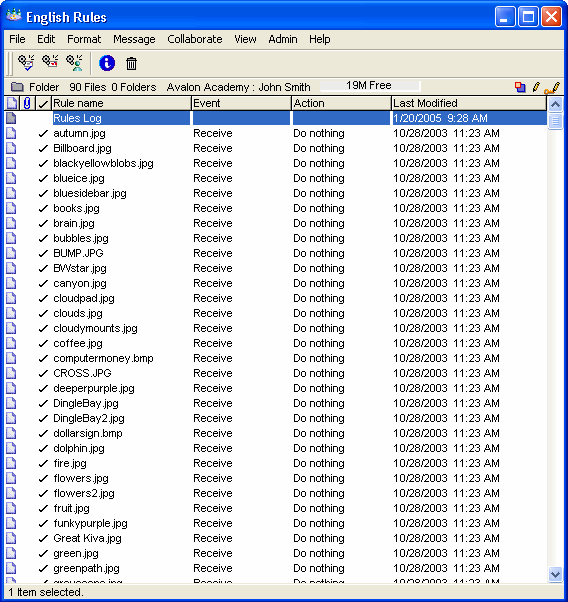
John collects all of his favorite graphics and stores them in the Rules & Resources folder of his English conference so he can find them easily. He accesses this folder by opening or highlighting his English conference, and then choosing Collaborate > Rules from the menu.
In this folder he includes landscapes, icons, fun graphics, educational graphics, self-designed graphics, and other images that interest him:
1242005_23313_0.png

Adding a background to a conference

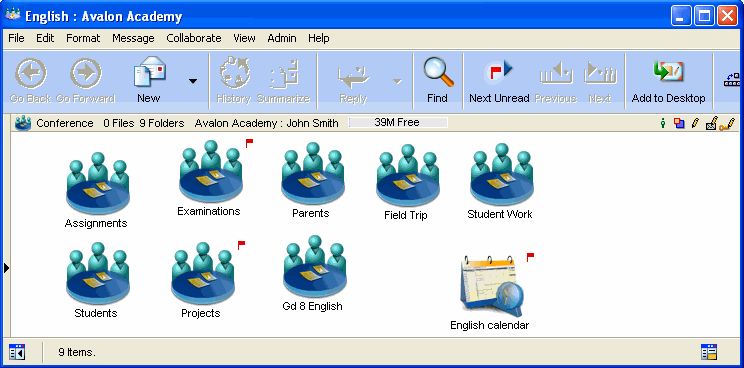
John thinks his English class conference looks too bland. He wants to make the conference look more interesting and visually appealing by adding a background. These are the steps that John follows:

1       He opens the English conference. This is what it currently looks like:
8312006_23619_0.png
2       John chooses View > Change View Properties.
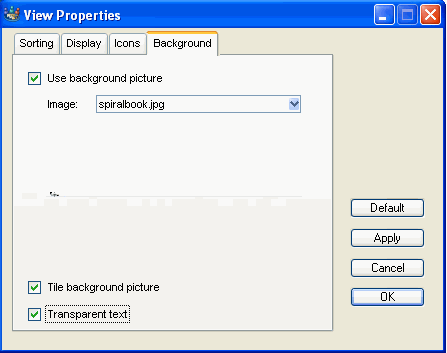
3       From here, he clicks the Background tab and selects the desired background image from the dropdown list.
4       He then selects "Use background picture", "Tile background picture" (the image will be repeated to cover the entire background), and "Transparent text" (object names will appear without a white box around them).
8152006_25127_1.png

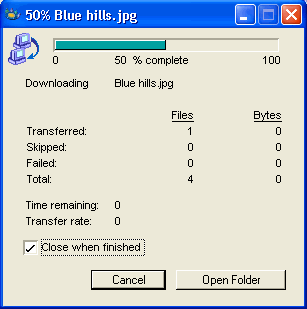
The next time one of John's students opens the conference, a file transfer window will appear to show that the new images are downloading to his settings file:
1212004_112200_6.png

The student will be able to see the new conference background once the new images are downloaded (this should only take a few seconds the first time the student opens the conference).

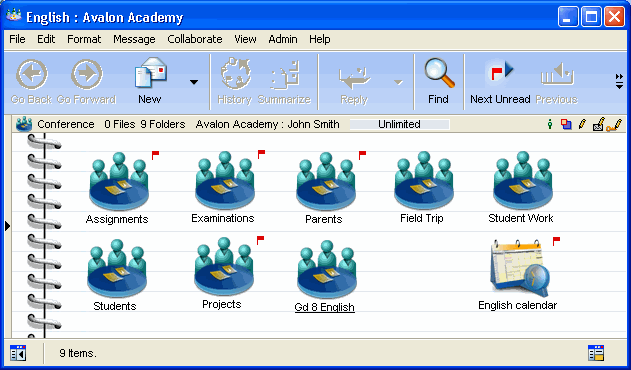
This is what the English conference looks like after John applies a background image:
9122006_115740_0.png

Adding a background to a document

John decides that he also wants to add a background image to a welcome document he plans to make available to parents in the Parents conference.

First, John chooses the image he wants from the Rules and Resources folder for his English conference, and downloads the graphic to his OS desktop.

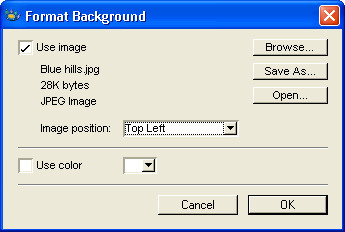
Next, to add the background to the document, John chooses Format > Format Background from the document menu. From here, he selects "Use image", then clicks Browse and chooses the desired graphic from his OS desktop:
1212004_111033_3.png
 
At Image position, John can set the background image to be displayed in the top left corner of the document window, or he can have the background appear as a tiled image. John can also select " Use color" and a color from the color selector to set a background color in the document.

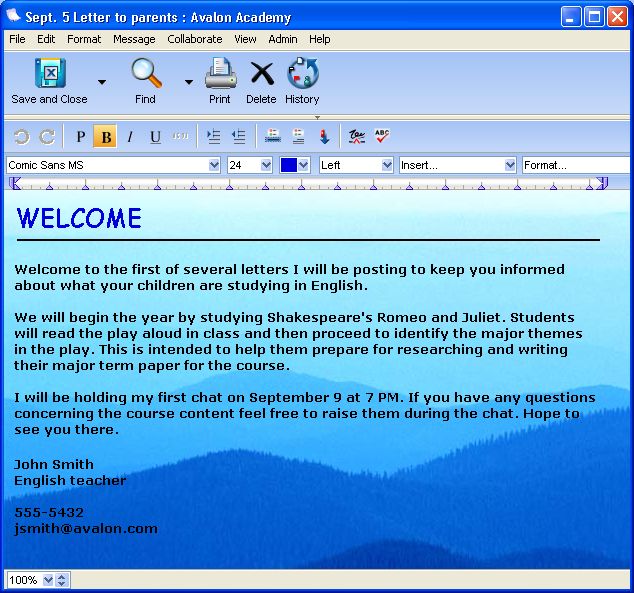
This is the document he created:
9122006_115856_1.jpg
Parents do not need to store the background image on their hard drives to see it in the document because the image is stored with the document right in FirstClass.

Inserting graphics into messages
John likes to add fun graphics to his messages. He can add graphics in one of two ways:
• copy and paste
He can copy and paste an open graphic from any location on his computer (such as a web site or FirstClass).
• drag and drop.
He can drag and drop graphics from his hard drive directly into the message.
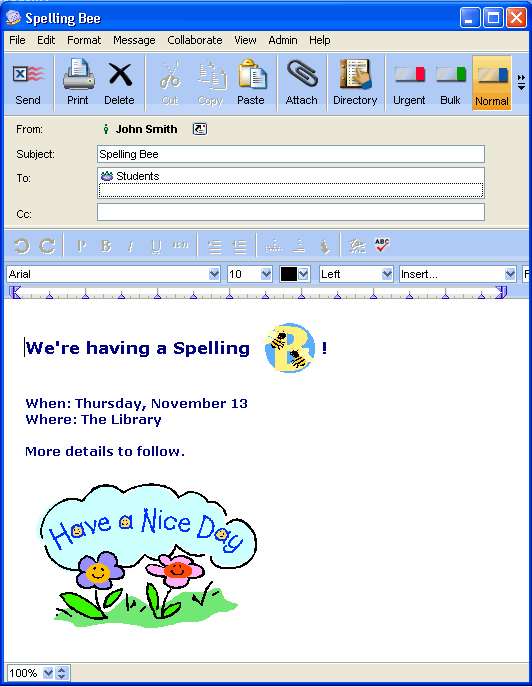
This is a message John sent to his students that includes some of his favorite graphics:
9122006_120207_2.png

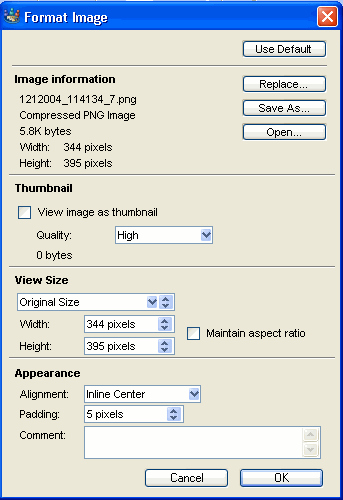
If John wants to format an image he pasted into a message or document, he simply selects the image and chooses Format > Format Image. From the Format Image window, he can customize the alignment, padding, size, height, and width of the image:
9122006_120324_3.png