[ fcp://@fc.onlinehelp.com,%237600229/En/OnlineHelp/Web%20Help/LW2 ]Contents [ fcp://@fc.onlinehelp.com,%237600229/En/OnlineHelp/Web%20Help/LW31 ][Image:81203_43854_21.png][ fcp://@fc.onlinehelp.com,%237600229/En/OnlineHelp/Web%20Help/LW42 ][Image:81203_43840_19.png] [Marker][ fcp://@fc.onlinehelp.com,%237600229/En/OnlineHelp/Web%20Help/LW32#The reading pane ]The reading pane [ fcp://@fc.onlinehelp.com,%237600229/En/OnlineHelp/Web%20Help/LW32#Opening the reading pane ]Opening the reading pane --------------- [Marker]The reading pane When the reading [ fcp://@fc.onlinehelp.com,%237600229/En/OnlineHelp/Definitions/L2018 ]pane is open, it is displayed under or to the right of the main pane. The reading pane displays the contents of any object selected in the main pane. For example, a selected message or document opens in this pane. You can work with objects in the reading pane just as you do when they are opened in the main pane. [ fcp://@fc.onlinehelp.com,%237600229/En/OnlineHelp/Web%20Help/LW32#Top ]Top --------------- [Marker]Opening the reading pane To open the reading pane, click this button: [Image:892006_13851_0.png] This button is only visible if you have the navigation pane open. It [ fcp://@fc.onlinehelp.com,%237600229/En/OnlineHelp/Definitions/L2035 ]toggles through three states. To move the reading pane to the right of the main pane, click this button again. To close the reading pane, click this button a third time. [ fcp://@fc.onlinehelp.com,%237600229/En/OnlineHelp/Web%20Help/LW32#Top ]Top
   
LC50
 
 
Home  •  Help  •  Client help  •  LC50
FirstClass window components
The status bar


FirstClass window components
http://website.marvel.co.jp/__Help/Client%20help/0000F083-007EA7C8.0/8232006_33730_0.jpg
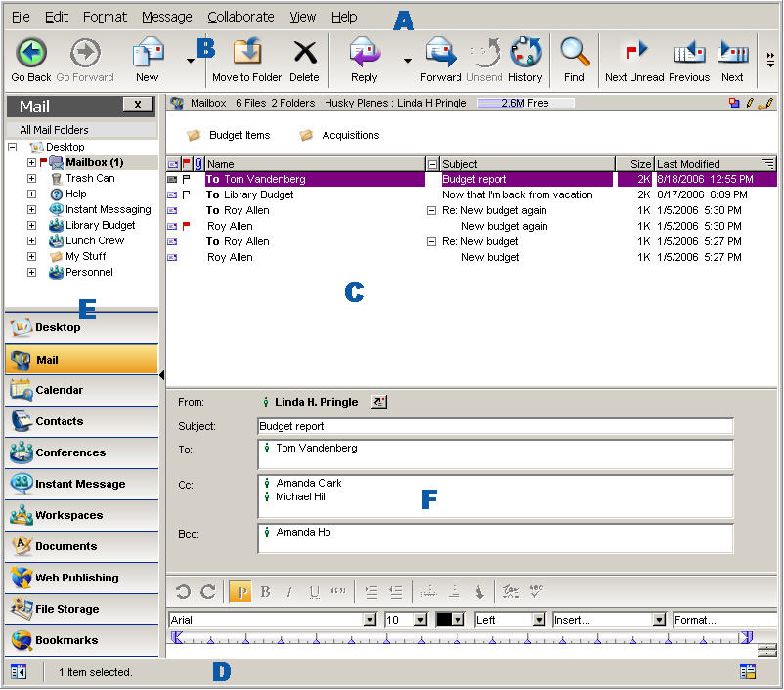
A FirstClass window consists of:
A       a menu bar
B       a toolbar
C       a main pane that displays the contents of an open container or object such as a message
D       a status bar
as well as panes that you can open or close as needed:

Pane
What this pane shows
Why open this pane?
E
navigation
•     A hierarchical (tree) view of FirstClass objects.
•       A navigation bar with buttons that launch the FirstClass applications (only shown on your Desktop).
•    Easy to move among containers.
•       One-click access to FirstClass applications.
F
reading
The contents of a selected object, such as a message.
Quick access to object contents in a single window.
The status bar
The status bar shows information such as:
•       help for an object, such as a toolbar button or field on a form, that your cursor is hovering over
•       a zoom control for content magnification, in objects such as messages
•       date and time, in calendars.
In addition, it contains buttons that let you toggle the navigation and reading panes on and off.
Top