[ fcp://@fc.onlinehelp.com,%237600229/En/OnlineHelp/Web%20Help/LW2 ]Contents [ fcp://@fc.onlinehelp.com,%237600229/En/OnlineHelp/Web%20Help/LW31 ][Image:81203_43854_21.png][ fcp://@fc.onlinehelp.com,%237600229/En/OnlineHelp/Web%20Help/LW42 ][Image:81203_43840_19.png] [Marker][ fcp://@fc.onlinehelp.com,%237600229/En/OnlineHelp/Web%20Help/LW32#The reading pane ]The reading pane [ fcp://@fc.onlinehelp.com,%237600229/En/OnlineHelp/Web%20Help/LW32#Opening the reading pane ]Opening the reading pane --------------- [Marker]The reading pane When the reading [ fcp://@fc.onlinehelp.com,%237600229/En/OnlineHelp/Definitions/L2018 ]pane is open, it is displayed under or to the right of the main pane. The reading pane displays the contents of any object selected in the main pane. For example, a selected message or document opens in this pane. You can work with objects in the reading pane just as you do when they are opened in the main pane. [ fcp://@fc.onlinehelp.com,%237600229/En/OnlineHelp/Web%20Help/LW32#Top ]Top --------------- [Marker]Opening the reading pane To open the reading pane, click this button: [Image:892006_13851_0.png] This button is only visible if you have the navigation pane open. It [ fcp://@fc.onlinehelp.com,%237600229/En/OnlineHelp/Definitions/L2035 ]toggles through three states. To move the reading pane to the right of the main pane, click this button again. To close the reading pane, click this button a third time. [ fcp://@fc.onlinehelp.com,%237600229/En/OnlineHelp/Web%20Help/LW32#Top ]Top
   
LC26
 
 
Home  •  Help  •  Client help  •  LC26
Grouping items in lists
Ungrouping items

Grouping items in lists
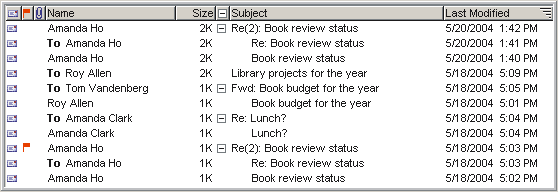
You can group all items by a column, such as Name or Subject. This puts the items with the same name or subject together. For example, this is a Mailbox grouped by subject:
5262004_61959_0.png

A grouping column is displayed to the left of the Subject column in this example. The grouping column shows tree view buttons (Windows, Linux) or disclosure triangles (Mac) beside grouped items.
To group items for a particular column, Control-click (Windows, Linux) or Option-click (Mac) the appropriate column heading.
Another way to specify which column to group on is to use
view properties to choose the column at "Group items on" on the Sorting tab of the View Properties form.
There are two grouping rules to note:

If you
FirstClass does this
use both sorting and grouping
Keeps groups together and sorts the list as a whole by the first item in each group.
Items are also sorted within each group.
group the Subject column
Groups messages by message threads, rather than alphabetically by subject.


Collapsing and expanding groups

To
Do this
collapse a group so that you only see the first item in the group
Click the button/triangle beside the group.
expand a collapsed group
Click the same button/triangle.
collapse or expand all groups
Click the grouping column heading.
or
Use the "Collapse all groups" field on the Sorting tab of the View Properties form.

572004_44255_0.pngCaution
If you collapse a group of items, then move or delete the displayed top item in the group, all items in the group are moved or deleted.
Ungrouping items
To remove grouping, Control-click or Option-click the grouping column heading.
Top