[ fcp://@fc.onlinehelp.com,%237600229/En/OnlineHelp/Web%20Help/LW2 ]Contents [ fcp://@fc.onlinehelp.com,%237600229/En/OnlineHelp/Web%20Help/LW31 ][Image:81203_43854_21.png][ fcp://@fc.onlinehelp.com,%237600229/En/OnlineHelp/Web%20Help/LW42 ][Image:81203_43840_19.png] [Marker][ fcp://@fc.onlinehelp.com,%237600229/En/OnlineHelp/Web%20Help/LW32#The reading pane ]The reading pane [ fcp://@fc.onlinehelp.com,%237600229/En/OnlineHelp/Web%20Help/LW32#Opening the reading pane ]Opening the reading pane --------------- [Marker]The reading pane When the reading [ fcp://@fc.onlinehelp.com,%237600229/En/OnlineHelp/Definitions/L2018 ]pane is open, it is displayed under or to the right of the main pane. The reading pane displays the contents of any object selected in the main pane. For example, a selected message or document opens in this pane. You can work with objects in the reading pane just as you do when they are opened in the main pane. [ fcp://@fc.onlinehelp.com,%237600229/En/OnlineHelp/Web%20Help/LW32#Top ]Top --------------- [Marker]Opening the reading pane To open the reading pane, click this button: [Image:892006_13851_0.png] This button is only visible if you have the navigation pane open. It [ fcp://@fc.onlinehelp.com,%237600229/En/OnlineHelp/Definitions/L2035 ]toggles through three states. To move the reading pane to the right of the main pane, click this button again. To close the reading pane, click this button a third time. [ fcp://@fc.onlinehelp.com,%237600229/En/OnlineHelp/Web%20Help/LW32#Top ]Top
   
LC20
 
 
Home  •  Help  •  Client Help  •  LC20
Window pane views


Window pane views
You can view the objects in a window pane as icons at their original sizes:
5802_44957_0.png

icons that you can resize (scale):
5802_45209_0.png

a multicolumn list:
5262004_61715_0.png

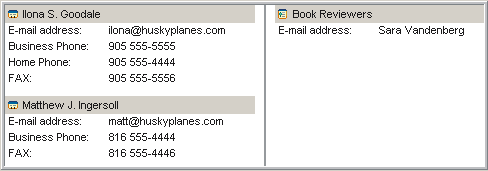
or an index card view:
5262004_61804_1.png
The index card view is a particularly useful display for personal contact information.
Normally, a two-pane main pane with a horizontal scroll bar shows objects in the upper pane as large icons and objects in the lower pane as a list.
Top


Changing the view
To change the view for a window pane:
1       Click the pane you want to change.
2       Specify the view you want.

To see
Do this
large icons
Choose View > View by Icon.
resizable icons
Choose View > View by Scaled Icon.
a multicolumn list
Choose View > View by List.
entries laid out like cards
Choose View > View by Index Card.

You can also use view properties to choose the view you want at the "Display format" field on the Sorting tab of the View Properties form.
Top


Changing text properties
To change the text appearance in a window pane, update the "Font", "Size", and "Use color" fields on the Display tab of the View Properties form.
Top